
Table of Contents Link to heading
- The Command-Line Interface
- The Shell
- Commands, Options, and Arguments
- Command History
- Variables
- Internal vs External Commands
- Aliases
- Functions
- Quoting
- Control Operators
The Command-Line Interface Link to heading
The CLI is the primary interface for systems administration, DevOps, and automation work on Linux. Its advantages over a GUI are significant in operational contexts:
- Precision: Commands are unambiguous — the exact operation is specified in text, with no risk of clicking the wrong menu item
- Speed: Experienced users execute complex operations faster via CLI than through any GUI equivalent
- Automation: CLI commands can be scripted, scheduled, and composed into repeatable workflows
- Remote access: SSH provides full CLI access to any remote system; GUI remote access is significantly more complex and resource-intensive
- Portability: CLI skills transfer across every Linux distribution — the same commands work on Ubuntu, RHEL, Debian, and Alpine
The Shell Link to heading
When a user types at a terminal, input goes to the shell — a command-line interpreter that parses the input, performs expansions (variables, globs, command substitution), and coordinates execution of the resulting commands.
Linux supports multiple shells: Bourne (sh), C shell (csh), tcsh, Korn shell (ksh), Z shell (zsh), and others. Bash (Bourne Again Shell) is the default on most Linux distributions and the most widely used. Bash features include:
- Command history with persistent storage (
~/.bash_history) - Inline editing (navigate and edit the current command line with arrow keys)
- Tab completion for commands, filenames, and arguments
- Scripting — full programming constructs (loops, conditionals, functions)
- Aliases — user-defined command shortcuts
- Variables — local and exported (environment) variables
The shell prompt displays contextual information. A typical prompt contains the username, hostname, and current directory:

The ~ symbol is shorthand for the current user’s home directory.
Commands, Options, and Arguments Link to heading
The standard command syntax is:
command [options] [arguments]
Options modify the command’s behaviour. Single-letter options are preceded by a single dash (-l, -h, -r); full-word options use double dashes (--human-readable, --recursive). Options can be combined:
ls -lh          # long listing with human-readable sizes
ls -lSh         # long listing, sorted by size, human-readable
Arguments specify what the command acts on — filenames, directories, usernames, patterns:
ls /etc /var    # list contents of two directories
grep "error" /var/log/syslog   # search a specific file

Command History Link to heading
Bash maintains a history of executed commands in memory and persists it to ~/.bash_history. This eliminates the need to retype complex commands.
- Press ↑ / ↓ to navigate through history
history— display the full history list with line numbers!n— re-execute command numbernfrom the history list!!— re-execute the most recent command!string— re-execute the most recent command beginning withstringhistory N— display the lastNcommands
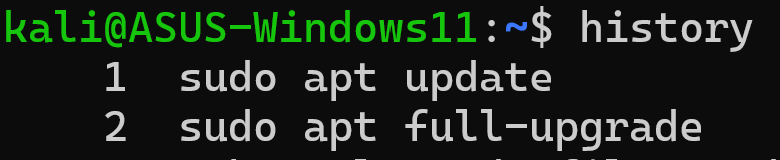
The HISTSIZE environment variable controls how many commands are retained in the history list.
Variables Link to heading
A variable is a named reference to a value stored in memory. Variables allow scripts and shell sessions to store, reuse, and pass information without hardcoding values.
Shell (Local) Variables Link to heading
Shell variables exist only in the current shell session. They are not inherited by child processes (subshells, scripts invoked as separate processes).
username=henry        # assign value (no spaces around =)
echo $username        # access value with $ prefix
The $ prefix tells the shell to substitute the variable’s value — this is called variable interpolation.

When a shell session closes, all local variables are lost.
Environment (Global) Variables Link to heading
Environment variables are available to the current shell and any child processes it spawns. They define the runtime environment for processes.
Common built-in environment variables:
| Variable | Purpose |
|---|---|
PATH |
Colon-separated list of directories searched for executable commands |
HOME |
Current user’s home directory |
HISTSIZE |
Number of commands retained in history |
SHELL |
Path to the current shell |
USER |
Current logged-in username |
env— display all current environment variablesexport VARNAME— promote a shell variable to an environment variable (makes it available to child processes)unset VARNAME— remove a variable from the environment

The PATH Variable Link to heading
PATH is one of the most operationally significant environment variables — it determines where the shell looks for executable programs when you type a command name without a full path.
echo $PATH
# /usr/local/sbin:/usr/local/bin:/usr/sbin:/usr/bin:/sbin:/bin
If a command is not in any PATH directory, the shell returns command not found. To add a custom directory (preserving the existing PATH):
export PATH=$PATH:/usr/local/custom/bin
$PATH when modifying the PATH variable. Setting PATH=/new/dir without the existing value removes all standard directories — basic commands like ls, cat, and cd will stop working until the variable is corrected or the session is restarted.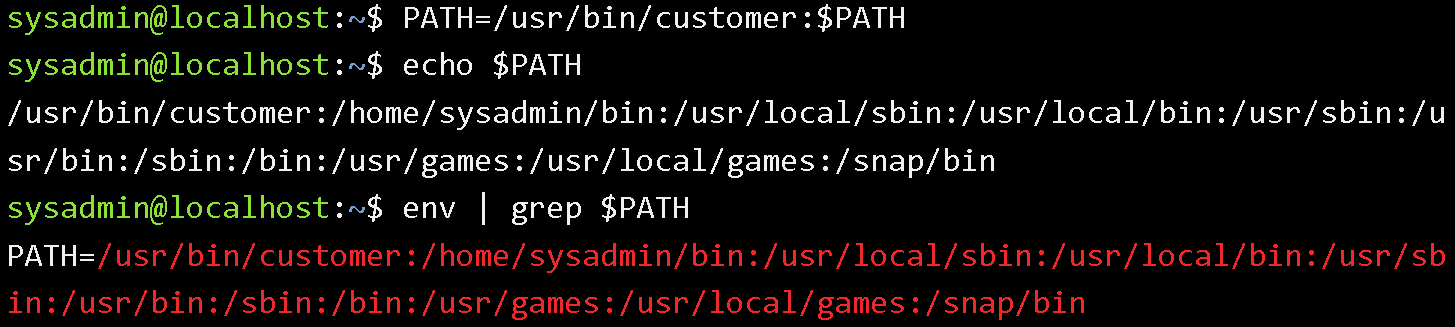
Internal vs External Commands Link to heading
Not all commands work the same way. The type command identifies what a given command is:
Internal (built-in) commands are part of the shell itself — they execute within the current shell process and do not require locating an executable file. Examples: cd, echo, export, alias, source, exit.
type cd
# cd is a shell builtin

External commands are separate executable files found by searching the PATH. The shell forks a child process to execute them.
type ls
# ls is /bin/ls
To find all locations where a command name exists (e.g., both a built-in and an external binary):
type -a echo
External commands can always be invoked by their full path, bypassing PATH lookup:
/bin/ls -la /etc
Aliases Link to heading
Aliases map a short name to a longer command or command with default options. They are evaluated before external command lookup.
alias ll='ls -lh --color=auto'
alias grep='grep --color=auto'
alias ..='cd ..'
alias— list all currently defined aliasesunalias name— remove an alias- Prefix a command with
\to bypass its alias:\lsuses the realls, not the alias
Aliases defined in a session are lost when the session ends. For permanent aliases, add them to ~/.bashrc or ~/.bash_aliases.

Functions Link to heading
Shell functions are named blocks of commands that can be called like commands. They are more powerful than aliases because they can accept arguments, use local variables, and contain logic.
mkcd() {
    mkdir -p "$1" && cd "$1"
}
Like aliases, functions are loaded from shell initialisation files (~/.bashrc, ~/.bash_profile) when a session starts.
Quoting Link to heading
Quoting controls how the shell interprets special characters and metacharacters.
Single Quotes Link to heading
Single quotes preserve the literal value of every character within them — no substitution, no expansion, no interpretation of metacharacters.
echo '$HOME'        # outputs: $HOME (no variable substitution)
echo 'file*.txt'    # outputs: file*.txt (no glob expansion)
Double Quotes Link to heading
Double quotes allow variable substitution and command substitution, but suppress glob expansion and most other metacharacter interpretation.
echo "$HOME"              # outputs: /home/username (variable is substituted)
echo "Today: $(date)"     # outputs the date (command substitution works)
echo "file*.txt"          # outputs: file*.txt (glob not expanded)
Backslash (Escape Character) Link to heading
A backslash escapes the next single character, preserving its literal value:
echo \$HOME        # outputs: $HOME ($ not treated as variable prefix)
\ls                # runs real ls, bypassing any ls alias
Backticks (Command Substitution) Link to heading
Backticks execute a command and substitute its output inline. The $(...) syntax is preferred in modern shell scripting because it supports nesting:
echo "Kernel: `uname -r`"
echo "Kernel: $(uname -r)"    # equivalent, preferred syntax

Control Operators Link to heading
Control operators sequence and conditionally execute multiple commands.
| Operator | Behaviour |
|---|---|
; |
Run commands sequentially; each runs regardless of previous exit status |
&& |
Run the next command only if the previous command succeeded (exit code 0) |
|| |
Run the next command only if the previous command failed (non-zero exit code) |
| |
Pipe STDOUT of the left command to STDIN of the right command |
> |
Redirect STDOUT to a file; overwrites if the file exists |
>> |
Redirect STDOUT to a file; appends if the file exists |
# Semicolon: both commands run regardless of outcome
mkdir /tmp/test; ls /tmp/test

# AND: second runs only if first succeeds
mkdir /tmp/test && echo "created"

# OR: second runs only if first fails
ls /nonexistent || echo "not found"

# Pipe: output of ls becomes input to grep
ls /etc | grep "conf"

# Redirect to file
ls /etc > /tmp/etc_listing.txt

# Append to file
date >> /tmp/log.txt
