Table of Contents Link to heading
- Shell Scripts
- The Shebang Line
- Making Scripts Executable
- Text Editors for Scripts
- Variables
- Conditional Logic
- Loops
Shell Scripts Link to heading
A shell script is a text file containing a sequence of shell commands. When executed, the shell reads and runs each command in order — the same commands you would type interactively, but stored for reuse and automation.
Scripting value proposition for sysadmins:
- Automation: Eliminate repetitive manual tasks — backup jobs, log rotation, deployment steps
- Consistency: The same commands run in the same order every time, with no risk of skipping a step or making a typo
- Auditability: Scripts are version-controllable — you can track what changed, when, and why
- Speed: A well-tested script runs faster and more reliably than a human executing the same steps
The Shebang Line Link to heading
The first line of a shell script should be a shebang — #! followed by the absolute path to the interpreter that should execute the script:
#!/bin/bash         # use bash explicitly
#!/bin/sh           # use the POSIX sh shell (more portable, fewer features)
#!/usr/bin/env bash # find bash in PATH (more portable across systems)
The shebang determines the interpreter only when the script is run directly (e.g., ./script.sh). When invoked as an argument to an interpreter (bash script.sh), the shebang is ignored and the specified interpreter is used regardless.
./script.sh         # uses interpreter from shebang line
bash script.sh      # always uses bash, ignores shebang
sh script.sh        # always uses sh, ignores shebang
For production scripts, #!/usr/bin/env bash is the most portable choice — it finds bash via PATH rather than hardcoding its location, which varies across Linux distributions and macOS.
Making Scripts Executable Link to heading
A new script file is not executable by default. Before running it directly, grant execute permission:
chmod +x script.sh          # add execute for all
chmod u+x script.sh         # add execute for owner only (preferred)
./script.sh                 # run directly
If you attempt to run a script without execute permission, you get:
bash: ./script.sh: Permission denied
Read more about permissions at
Text Editors for Scripts Link to heading
Shell scripts are plain text — any text editor works. Two are commonly available on minimal Linux systems:
nano: Simple, beginner-friendly; good for quick edits on remote systems where no GUI is availablevi/vim: Steep learning curve but extremely powerful once learned; available on virtually every Linux system, making it the reliable fallback for remote editing
For complex scripts, a local editor with syntax highlighting and a linter (shellcheck) is far more productive than editing on the remote system.
Variables Link to heading
Assignment and Interpolation Link to heading
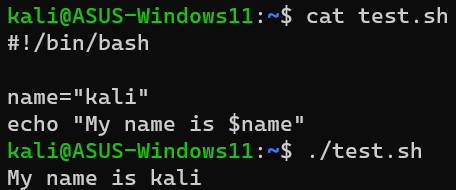
Variables store values that can be referenced throughout a script. Assignment uses = with no spaces on either side:
hostname="web01"
port=8080
log_dir="/var/log/myapp"
To use a variable’s value, prefix it with $:
echo $hostname
echo "Connecting to $hostname:$port"
echo "Logs are in ${log_dir}/access.log"    # braces clarify variable boundary
The ${} syntax is useful when the variable name is immediately followed by other characters that could be interpreted as part of the name:
file="backup"
echo "${file}_2024.tar.gz"    # outputs: backup_2024.tar.gz
echo "$file_2024.tar.gz"      # would look for variable $file_2024
Command Substitution Link to heading
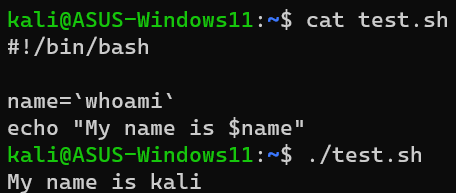
Use the output of a command as the value of a variable:
# Preferred modern syntax
current_date=$(date +%Y-%m-%d)
disk_usage=$(df -h / | tail -1 | awk '{print $5}')
hostname=$(hostname -f)

# Legacy backtick syntax (equivalent but cannot be nested)
current_date=`date +%Y-%m-%d`
Reading User Input Link to heading
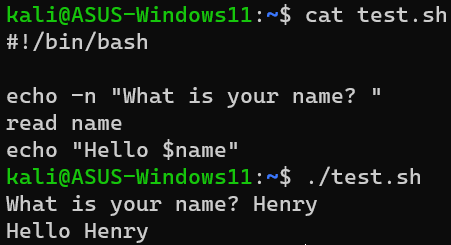
read pauses the script and waits for user input, storing it in a variable:
read -p "Enter username: " username
read -sp "Enter password: " password    # -s: silent (no echo)
echo ""                                  # newline after silent input
echo "Creating user: $username"
Positional Parameters (Script Arguments) Link to heading
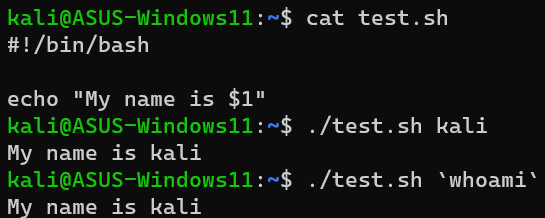
Arguments passed to a script on the command line are available as $1, $2, etc.:
#!/bin/bash
# Usage: ./backup.sh /source/dir /destination/dir

source_dir=$1
dest_dir=$2
script_name=$0    # name of the script itself

echo "Backing up $source_dir to $dest_dir"

# Special variables
echo "Script name: $0"
echo "Argument count: $#"
echo "All arguments: $@"
echo "Last exit code: $?"
./backup.sh /var/www /backup/www
# source_dir = /var/www
# dest_dir   = /backup/www
Conditional Logic Link to heading
The test Command and [ ] Syntax Link to heading
test evaluates conditions and returns exit code 0 (true) or 1 (false). The [ ] syntax is equivalent and more readable:
File tests:
test -f /etc/passwd             # true if file exists and is a regular file
[ -f /etc/passwd ]              # equivalent
[ -d /var/log ]                 # true if directory exists
[ -e /tmp/lockfile ]            # true if path exists (any type)
[ -r /etc/shadow ]              # true if readable
[ -w /tmp/test.txt ]            # true if writable
[ -x /usr/bin/python3 ]         # true if executable
[ -s /var/log/app.log ]         # true if file exists and is non-empty
[ -L /usr/bin/python ]          # true if symbolic link
String tests:
[ -z "$var" ]                   # true if string is empty
[ -n "$var" ]                   # true if string is non-empty
[ "$str1" = "$str2" ]           # true if strings are equal
[ "$str1" != "$str2" ]          # true if strings differ
Numeric comparisons:
[ "$a" -eq "$b" ]               # equal
[ "$a" -ne "$b" ]               # not equal
[ "$a" -lt "$b" ]               # less than
[ "$a" -le "$b" ]               # less than or equal
[ "$a" -gt "$b" ]               # greater than
[ "$a" -ge "$b" ]               # greater than or equal
Use [[ ]] (Bash extended test) for more features: pattern matching with =~, logical AND && and OR || without escaping, and safer handling of unquoted variables.
The if Statement Link to heading
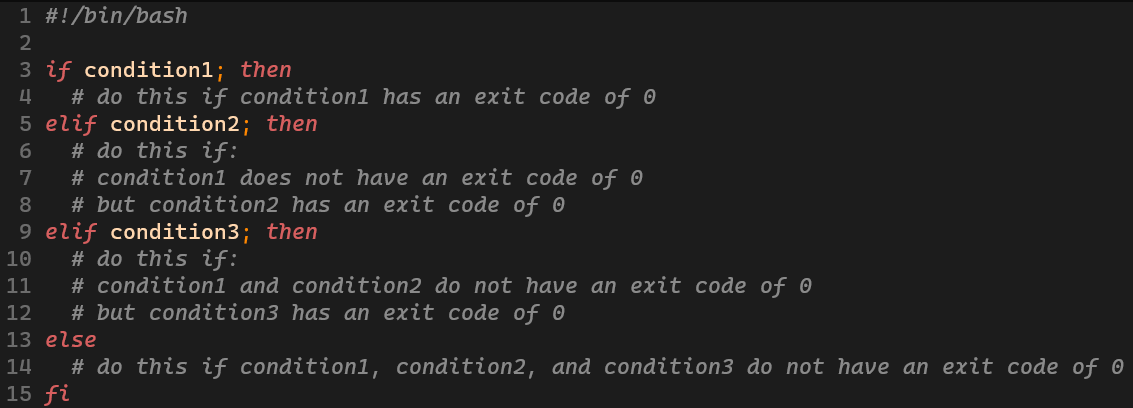
if [ condition ]; then
    commands_if_true
elif [ other_condition ]; then
    commands_if_other_true
else
    commands_if_false
fi
Practical examples:
#!/bin/bash

# Check if a service config file exists
if [ -f /etc/nginx/nginx.conf ]; then
    echo "nginx config found"
else
    echo "ERROR: nginx config missing"
    exit 1
fi

# Check script was called with the right number of arguments
if [ $# -ne 2 ]; then
    echo "Usage: $0 <source> <destination>"
    exit 1
fi

# Check if running as root
if [ "$(id -u)" -ne 0 ]; then
    echo "This script must be run as root"
    exit 1
fi

# Combined conditions with && (AND) and || (OR)
if [ -f "$1" ] && [ -r "$1" ]; then
    cat "$1"
fi
The case Statement Link to heading
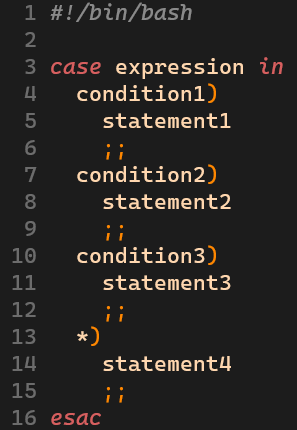
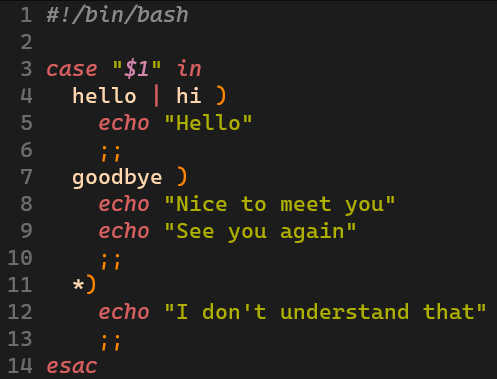
case is the cleaner alternative to long if/elif chains when testing a single variable against multiple patterns:
case EXPRESSION in
    pattern1)
        commands
        ;;
    pattern2|pattern3)
        commands
        ;;
    *)
        default_commands
        ;;
esac
- Each pattern is terminated by
) - Commands for each branch end with
;;(double semicolon) *is the catch-all default pattern (likeelse)- Multiple patterns for one branch are separated by
|
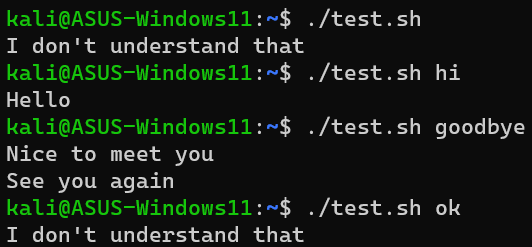
Practical example:
#!/bin/bash
# Service control script

action=$1
service=$2

case "$action" in
    start)
        systemctl start "$service"
        echo "Started $service"
        ;;
    stop)
        systemctl stop "$service"
        echo "Stopped $service"
        ;;
    restart|reload)
        systemctl restart "$service"
        echo "Restarted $service"
        ;;
    status)
        systemctl status "$service"
        ;;
    *)
        echo "Usage: $0 {start|stop|restart|reload|status} <service>"
        exit 1
        ;;
esac
Loops Link to heading
for Loop Link to heading
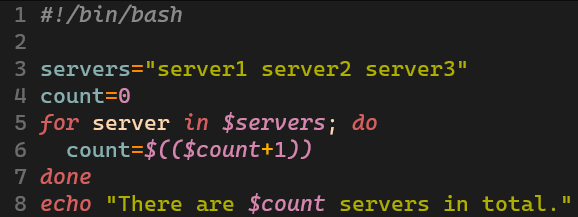
for iterates over a list of items — fixed values, glob patterns, command output, or a numeric range:
# Iterate over a fixed list
for server in web01 web02 web03; do
    echo "Checking $server..."
    ssh "$server" "uptime"
done

# Iterate over files matching a pattern
for logfile in /var/log/*.log; do
    echo "Processing: $logfile"
    gzip "$logfile"
done

# Iterate over command output
for user in $(cut -d: -f1 /etc/passwd); do
    echo "User: $user"
done

# Numeric range (bash-specific)
for i in {1..10}; do
    echo "Iteration $i"
done

# C-style numeric loop
for ((i=0; i<10; i++)); do
    echo "Count: $i"
done
while Loop Link to heading
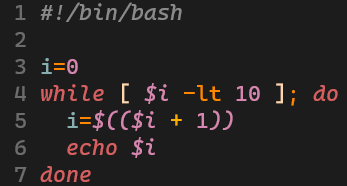
while executes as long as the condition is true. Useful when the number of iterations is not known in advance:
# Loop while a condition holds
count=1
while [ $count -le 10 ]; do
    echo "Count: $count"
    ((count++))
done

# Read a file line by line
while IFS= read -r line; do
    echo "Line: $line"
done < /etc/hosts

# Retry loop with timeout
attempts=0
max_attempts=5
while ! ping -c1 -W1 192.168.1.1 &>/dev/null; do
    ((attempts++))
    if [ $attempts -ge $max_attempts ]; then
        echo "Host unreachable after $max_attempts attempts"
        exit 1
    fi
    echo "Attempt $attempts failed, retrying..."
    sleep 2
done
echo "Host is reachable"
until Loop Link to heading
until executes as long as the condition is false — the logical inverse of while:
# Loop until a condition becomes true
count=1
until [ $count -gt 10 ]; do
    echo "Count: $count"
    ((count++))
done

# Wait until a service is ready
until systemctl is-active --quiet nginx; do
    echo "Waiting for nginx to start..."
    sleep 1
done
echo "nginx is running"
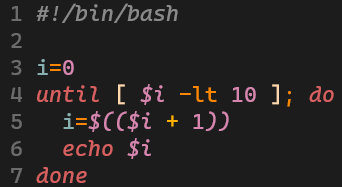
If the condition is already true when an until loop starts (or false for while), the loop body never executes. For cases where the body must run at least once — regardless of the initial condition — restructure with a while true loop and an explicit break:
while true; do
    read -p "Enter 'quit' to exit: " input
    [ "$input" = "quit" ] && break
    echo "You entered: $input"
done