Table of Contents Link to heading
- Globbing: Pattern Matching with Wildcards
- Copying Files and Directories: cp
- Moving and Renaming: mv
- Creating Files and Directories
- Removing Files and Directories: rm and rmdir
Globbing: Pattern Matching with Wildcards Link to heading
Globbing is the shell’s mechanism for expanding wildcard patterns into lists of matching filenames before passing them to a command. The expansion happens in the shell — the command itself receives the expanded list, not the pattern.
This distinction matters: ls *.txt is not the ls command searching for text files; it is the shell expanding *.txt into all matching filenames in the current directory, then passing that list to ls. If no files match the pattern, the shell’s behaviour depends on the nullglob setting (by default, unmatched globs are passed to the command as a literal string).
Asterisk: * Link to heading
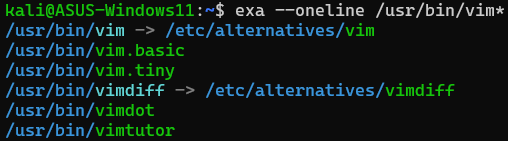
* matches zero or more of any character (except a leading dot, which hides files):
ls /usr/bin/vim*      # matches vim, vimdiff, vimtutor, etc.
ls *.log              # all files ending in .log
ls report_*.pdf       # all PDFs starting with report_
cp /var/log/*.log /backup/logs/
Question Mark: ? Link to heading
? matches exactly one character — no more, no less:
ls /usr/bin/ip??      # matches exactly 4-character names starting with "ip"
ls file?.txt          # matches file1.txt, fileA.txt — not file10.txt

Square Brackets: [] Link to heading
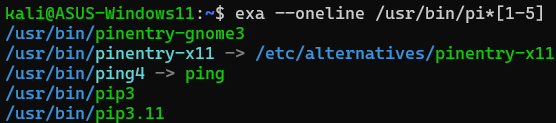
Square brackets match a single character from the specified set or range.
Set of distinct characters:
ls /usr/sbin/[cs]fdisk    # matches cfdisk or sfdisk
ls [abc]*.conf            # files starting with a, b, or c
Range of consecutive characters:
ls file[1-5].txt          # matches file1.txt through file5.txt
ls [a-z]*.sh              # scripts starting with a lowercase letter
ls [A-Z]*                 # files starting with an uppercase letter
Negation with !: matches any character not in the set:
ls [^0-9]*                # files not starting with a digit
ls /usr/sbin/[!aeiou]*    # files not starting with a vowel

Exclamation Mark: ! Link to heading
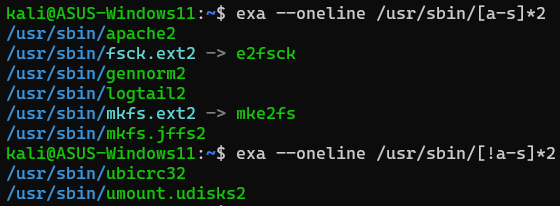
When placed as the first character inside [], ! negates the character class — the bracket expression matches any character not in the specified set:
ls /usr/sbin/[!a-s]* # files not beginning with letters a through s
Character Class Expressions Link to heading
POSIX character classes can be used inside brackets for internationalisation-safe matching:
| Class | Matches |
|---|---|
[:alpha:] |
Any alphabetic character (locale-aware) |
[:lower:] |
Any lowercase alphabetic character |
[:upper:] |
Any uppercase alphabetic character |
[:digit:] |
Any digit (0–9) |
[:alnum:] |
Any alphanumeric character |
[:space:] |
Any whitespace (space, tab, newline) |
[:punct:] |
Any printable non-whitespace, non-alphanumeric character |
[:graph:] |
Any printable character except space |
[:print:] |
Any printable character including space |
[:cntrl:] |
Any non-printable control character |
ls [[:upper:]]*           # files starting with an uppercase letter
ls *[[:digit:]]           # files ending with a digit
ls [[:alpha:]][[:digit:]]* # files starting with a letter then a digit

Copying Files and Directories: cp Link to heading
cp copies files and directories. The source is preserved; a new copy is created at the destination.
# Copy a file to a new name
cp report.txt report_backup.txt

# Copy a file into a directory (keeps original filename)
cp report.txt /backup/

# Copy multiple files into a directory
cp *.log /backup/logs/

# Copy recursively (required for directories)
cp -r /etc/nginx/ /backup/nginx-config/

# Copy verbosely (shows each file as it is copied)
cp -rv /etc/nginx/ /backup/nginx-config/

# Interactive — prompt before overwriting existing files
cp -i source.txt destination.txt

# Never overwrite existing files
cp -n source.txt destination.txt

# Follow symbolic links before copying
cp -L link_file /destination/

# Use directory as destination (useful with xargs)
cp -t /destination/ file1 file2 file3
cp -i (interactive) when copying to a location that may already contain files, especially when using wildcards. Without -i, cp silently overwrites existing files with no confirmation and no undo.Moving and Renaming: mv Link to heading
mv moves files and directories, or renames them when the source and destination are in the same filesystem. Unlike cp, no copy is made — the source is removed (within the same filesystem, this is a metadata-only operation, not a data copy).
# Rename a file
mv old_name.txt new_name.txt

# Move a file into a directory
mv report.txt /archive/

# Move multiple files into a directory
mv *.log /var/log/archive/

# Move a directory
mv /tmp/project/ /home/user/projects/

# Interactive — prompt before overwriting
mv -i source.txt destination.txt

# Do not overwrite existing files
mv -n source.txt destination.txt

# Force overwrite without prompting
mv -f source.txt destination.txt

# Verbose — show each move
mv -v *.txt /archive/
mv does not ask for confirmation before overwriting an existing file at the destination (unlike rm -i). Use mv -i when moving into directories that may contain files with the same name. On cross-filesystem moves (e.g., from one mount point to another), mv performs a copy-then-delete, which can be slow for large files and leaves partial data if interrupted.Creating Files and Directories Link to heading
touch Link to heading
touch creates an empty file if it does not exist, or updates the access/modification timestamps of an existing file without modifying its contents. Creating empty files is useful for placeholder files, build system markers, and testing scripts that expect files to exist.
# Create empty files
touch file1.txt file2.txt file3.txt

# Update timestamps only, do not create if missing
touch -c existing_file.txt

# Set access time to now
touch -a file.txt

# Set modification time to now
touch -m file.txt

# Set timestamp to a specific value
touch -t 202412311830.00 file.txt    # Dec 31 2024, 18:30:00

# Set timestamp to match another file
touch -r reference_file.txt target_file.txt
mkdir Link to heading
mkdir creates directories. By default it fails if any parent in the path does not exist.
# Create a single directory
mkdir /tmp/newdir

# Create multiple directories
mkdir dir1 dir2 dir3

# Create a directory and all necessary parents (no error if already exists)
mkdir -p /opt/app/logs/2024/

# Create with specific permissions
mkdir -m 750 /srv/private/

# Verbose — print each directory as it is created
mkdir -pv /opt/app/{conf,logs,data}
mkdir -p is safe to use in scripts even when the directory may already exist — it does not produce an error if the path is already present. This makes it preferable to a pre-existence check in most automation contexts.Removing Files and Directories: rm and rmdir Link to heading
rm removes files and non-empty directories. rmdir removes only empty directories.
# Remove specific files
rm file1.txt file2.txt

# Remove without prompting (suppress errors for non-existent files)
rm -f file.txt

# Interactive — prompt before each deletion
rm -i *.log

# Remove a directory and all its contents recursively
rm -r /tmp/old_project/

# Recursive + force (no prompts, no errors for missing files)
rm -rf /tmp/old_project/

# Verbose — print each file as it is removed
rm -v *.tmp

# Remove empty directories
rmdir emptydir/
rmdir -p path/to/nested/empty/dirs/    # remove chain of empty parents
rm -rf is irreversible — there is no Trash or Recycle Bin in the Linux CLI. Files removed with rm are gone. Before running any rm -rf command:
- Verify the path with
lsorechobefore usingrm - Avoid running as root unless necessary
- Consider
rm -ri(interactive recursive) when the scope is uncertain - Never run
rm -rf /orrm -rf /*— most distributions include a--no-preserve-rootguard, but the consequences of bypassing it are catastrophic
A common safe pattern: replace rm with echo rm first to preview exactly what would be deleted, then run the actual command.
Use rmdir when you want to ensure a directory is actually empty before removing it — it fails if any files remain, providing a safety check that rm -r does not:
rmdir /tmp/should_be_empty/     # fails with error if not empty
rm -r /tmp/definitely_remove/   # removes regardless of contents