Table of Contents Link to heading
- Linux Filesystem Architecture
- Directory Structure
- Home Directory
- Current Working Directory: pwd
- Changing Directories: cd
- Absolute and Relative Paths
- Listing Directory Contents: ls
Linux Filesystem Architecture Link to heading
In Linux, everything is a file. Regular files contain data; directories are files that contain references to other files; devices, sockets, and pipes are all represented as files in the filesystem. This unified model simplifies access control and programmatic interaction — the same permission system that protects a text file also protects a network socket.
Each file is identified not by its name but by its inode number — a unique identifier assigned by the filesystem. The inode stores all metadata about the file (permissions, ownership, timestamps, pointers to data blocks) but not the filename itself. Filenames are stored in directory entries, which map names to inode numbers. This design allows multiple names (hard links) to point to the same underlying file.
Directory Structure Link to heading
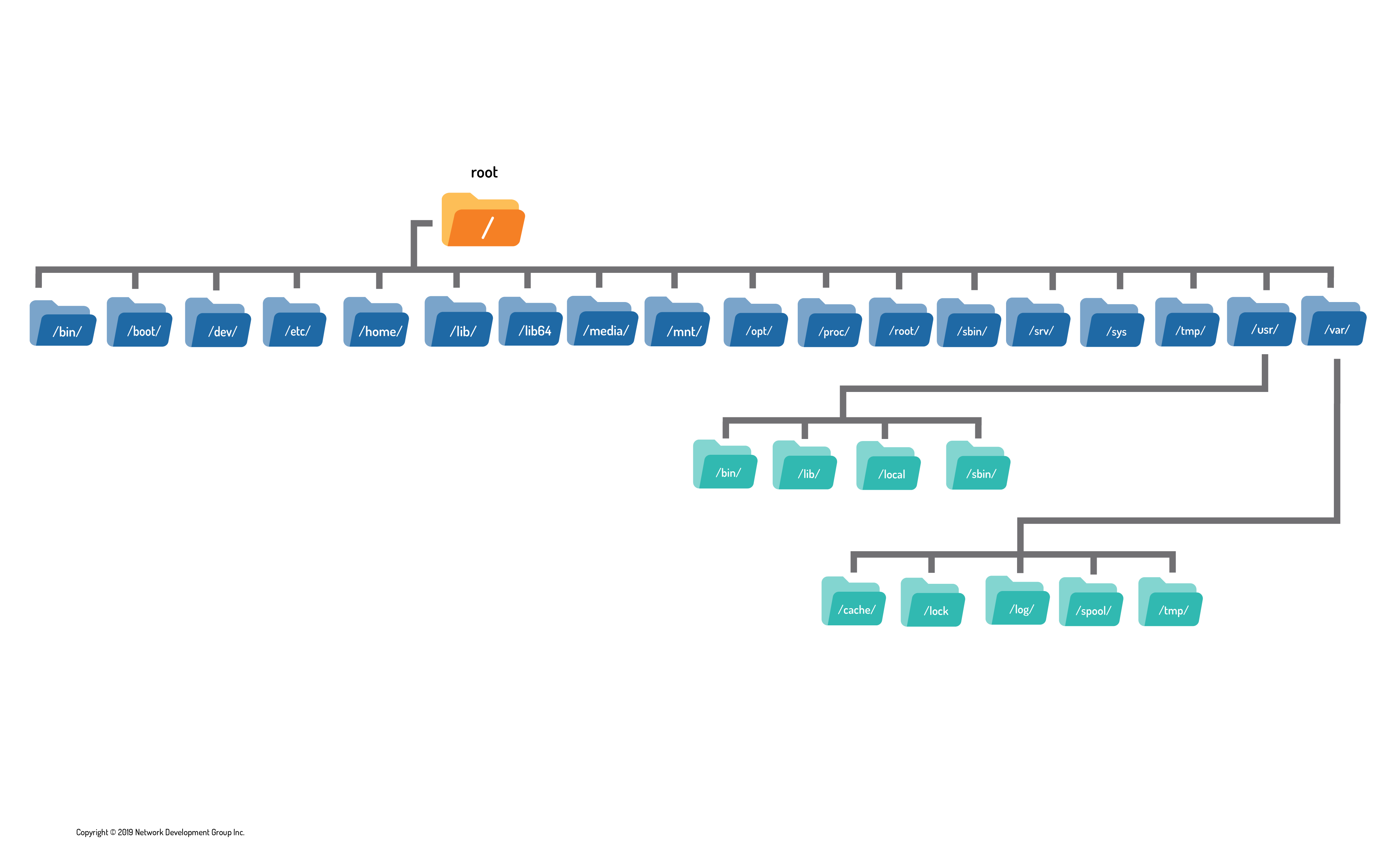
Windows organises storage under drive letters (C:\, D:\). Linux has a single unified hierarchy — a single root, with all filesystems (local disks, network shares, USB drives, virtual filesystems) mounted at points within the same tree.
The top of the hierarchy is the root directory, represented by /. Every path in the system starts from /:
ls / # list contents of the root directory

Home Directory Link to heading
Each user has a home directory — a personal space where they have full read/write access. Home directories live under /home/ by convention, named after the username:
- User
sysadmin→/home/sysadmin - User
henry→/home/henry
The root user’s home directory is /root (not /home/root).
The tilde ~ is a shorthand for the current user’s home directory, and ~username refers to another user’s home:
cd ~            # go to current user's home
cd ~henry       # go to henry's home directory
When a user opens a shell, they start in their home directory. Most other directories in the system are protected — a regular user can only create files in their home directory, /tmp, and /var/tmp without elevated privileges.
Current Working Directory: pwd Link to heading
pwd (print working directory) displays the absolute path of the directory you are currently in:
pwd
# /home/sysadmin/.vim

Changing Directories: cd Link to heading
cd (change directory) navigates the filesystem:
cd /etc             # go to /etc (absolute path)
cd logs             # go to the logs subdirectory of the current directory (relative)
cd ..               # go up one level to the parent directory
cd                  # go to home directory (no argument)
cd -                # go to the previous directory

If the target directory does not exist, cd returns bash: cd: target: No such file or directory.
Absolute and Relative Paths Link to heading
A path is a sequence of directory names separated by / that specifies the location of a file or directory.
Absolute Paths Link to heading
An absolute path starts with / and specifies the complete location from the root of the filesystem. It is unambiguous regardless of the current directory:
cd /home/sysadmin/Documents
cat /etc/hostname
ls /var/log/nginx/
Relative Paths Link to heading
A relative path does not start with /. It specifies a location relative to the current working directory:
# If currently in /home/sysadmin:
cd Documents            # resolves to /home/sysadmin/Documents
cat ../henry/notes.txt  # resolves to /home/henry/notes.txt
Path Shortcuts Link to heading
| Shortcut | Meaning |
|---|---|
. |
The current directory |
.. |
The parent directory (one level up) |
~ |
The current user’s home directory |
- |
(with cd) the previous working directory |
Listing Directory Contents: ls Link to heading
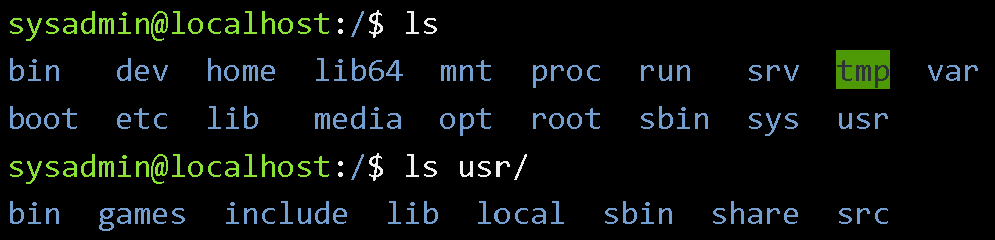
ls lists the contents of a directory. Without arguments, it lists the current directory:
ls                  # list current directory
ls /etc             # list a specific directory
ls /etc /var        # list multiple directories
Hidden Files Link to heading
Files whose names begin with . are hidden — ls omits them by default. This convention keeps configuration files (.bashrc, .vimrc, .ssh/) out of routine directory listings.
ls -a               # show all files including hidden ones
ls -A               # show hidden files but omit . and ..

Long Listing Format Link to heading
ls -l displays detailed metadata for each file:
ls -l
# drwxr-xr-x 5 kali kali  4096 Nov 24 22:11 dictionary
# -rw-r--r-- 1 kali kali 45665 Nov 24 22:11 vimrc
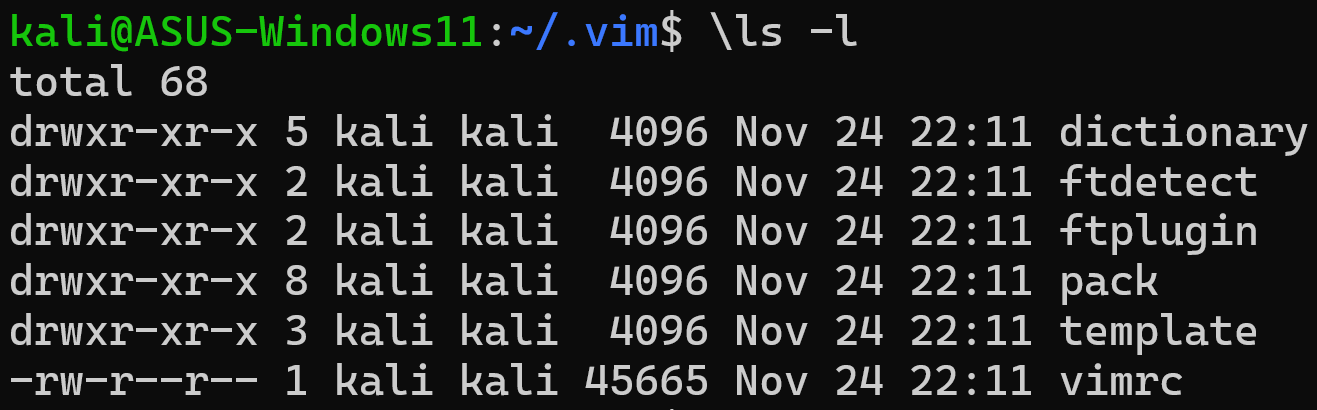
Each field in a long listing:
| Field | Example | Meaning |
|---|---|---|
| File type | d / - / l |
Directory, regular file, or symbolic link (see table below) |
| Permissions | rwxr-xr-x |
Nine characters: owner/group/others × read/write/execute |
| Hard link count | 5 |
Number of directory entries pointing to this inode |
| User owner | kali |
The user account that owns the file |
| Group owner | kali |
The group that owns the file |
| Size | 4096 |
File size in bytes; use -h for human-readable (K, M, G) |
| Timestamp | Nov 24 22:11 |
Last modification time; --full-time shows seconds |
| Name | dictionary |
Filename or directory name |
File type characters:
| Symbol | Type | Description |
|---|---|---|
- |
Regular file | Text files, binaries, images, archives |
d |
Directory | Contains references to other files |
l |
Symbolic link | Points to another file or directory |
s |
Socket | Inter-process communication endpoint |
p |
Named pipe | FIFO for inter-process communication |
b |
Block device | Storage device with buffered access (disk) |
c |
Character device | Unbuffered device (terminal, serial port) |
Add -h for human-readable sizes:
ls -lh # sizes shown as 4.0K, 1.2M, 3.4G
Listing Directories Themselves Link to heading
-d prevents ls from listing the contents of a directory — it shows the directory entry itself:
ls -ld /etc         # show metadata of /etc itself, not its contents
ls -ld /home/*/     # show metadata of all home directories

Recursive Listing Link to heading
-R lists a directory and all of its subdirectories recursively:
ls -R /etc/ssh # list ssh config and all subdirectories
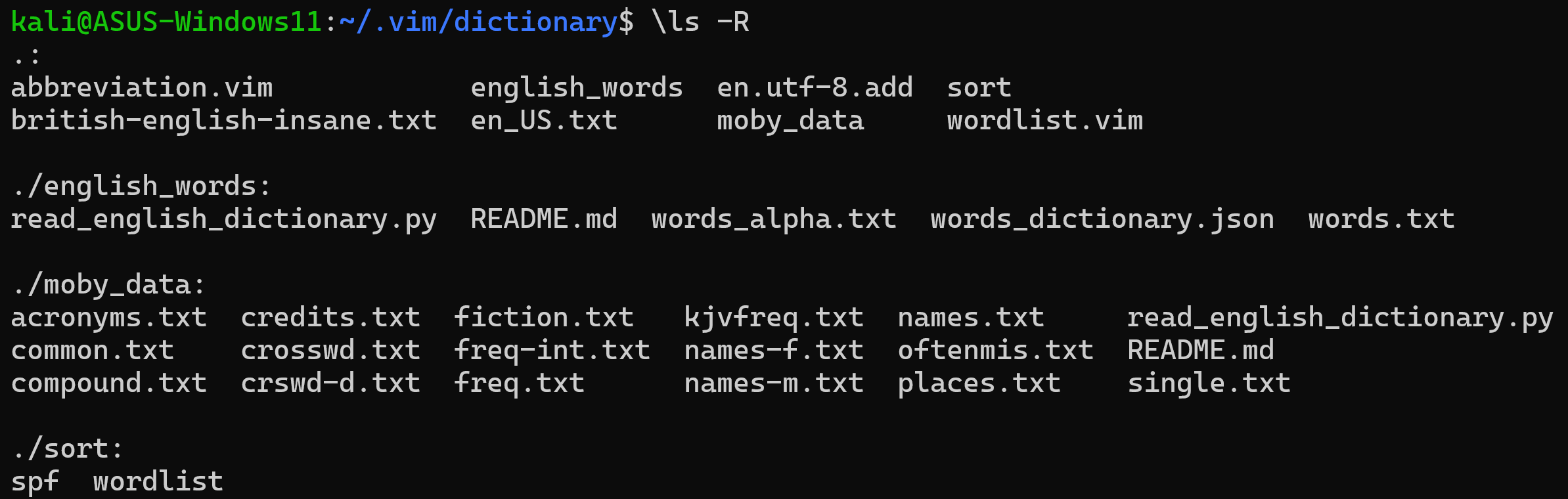
ls -R / lists every file on the entire system including mounted filesystems. On a system with millions of files, this will run for a very long time. Limit recursive listings to specific, reasonably-scoped directories.Sorting Options Link to heading
ls -lS              # sort by file size, largest first
ls -lSh             # sort by size, human-readable
ls -lt              # sort by modification time, newest first
ls -ltr             # sort by modification time, oldest first (reverse)
ls -l --full-time   # show complete timestamp (implies -l)
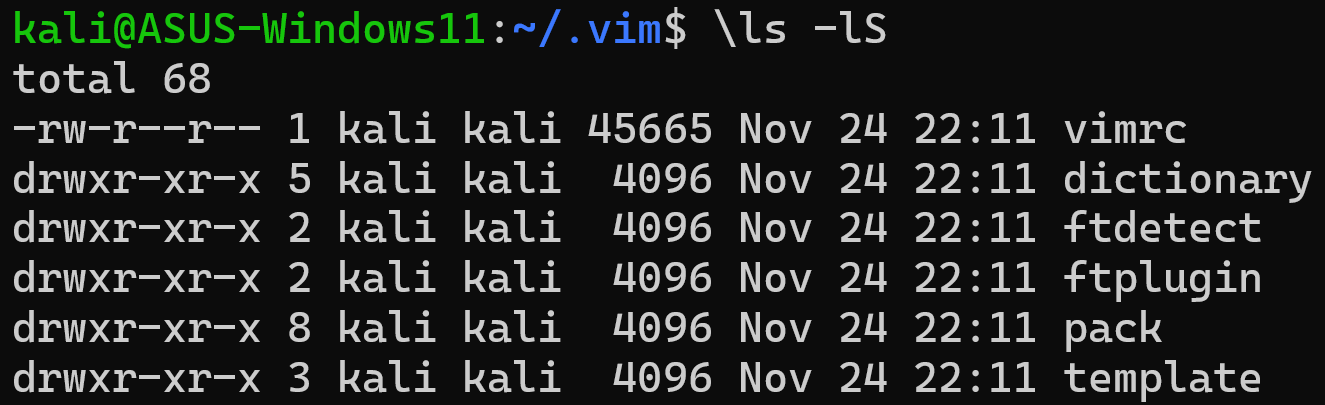
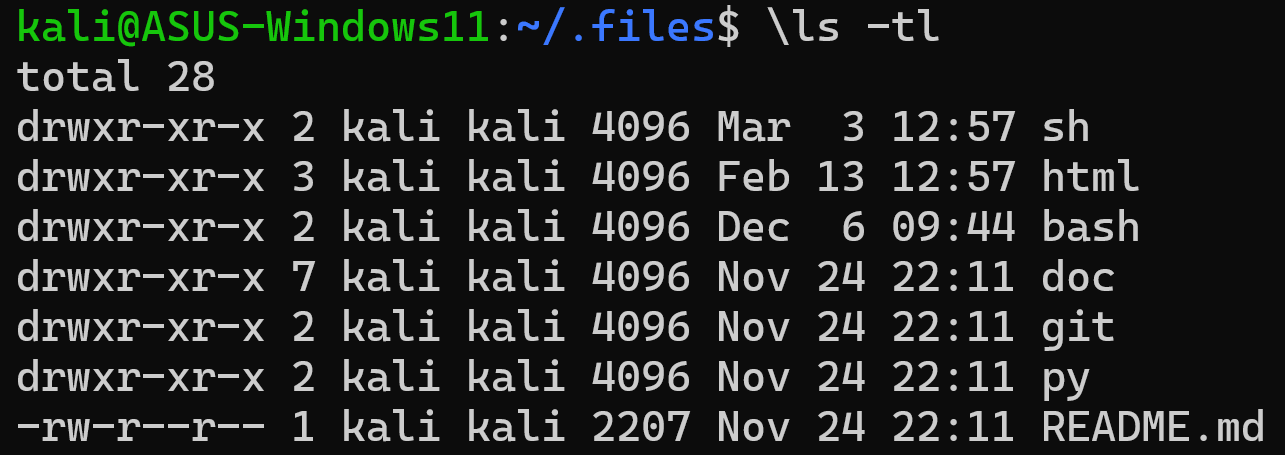
The -r flag reverses the sort order and can be combined with -S or -t:
ls -lrSh # sort by size, smallest first, human-readable