Table of Contents Link to heading
- Motherboard
- CPU: Inspection and Architecture
- RAM and Virtual Memory
- Buses: PCI and USB
- Storage Devices
- Kernel Modules and Device Drivers
- Video Display Devices
- Power Supplies
Motherboard Link to heading
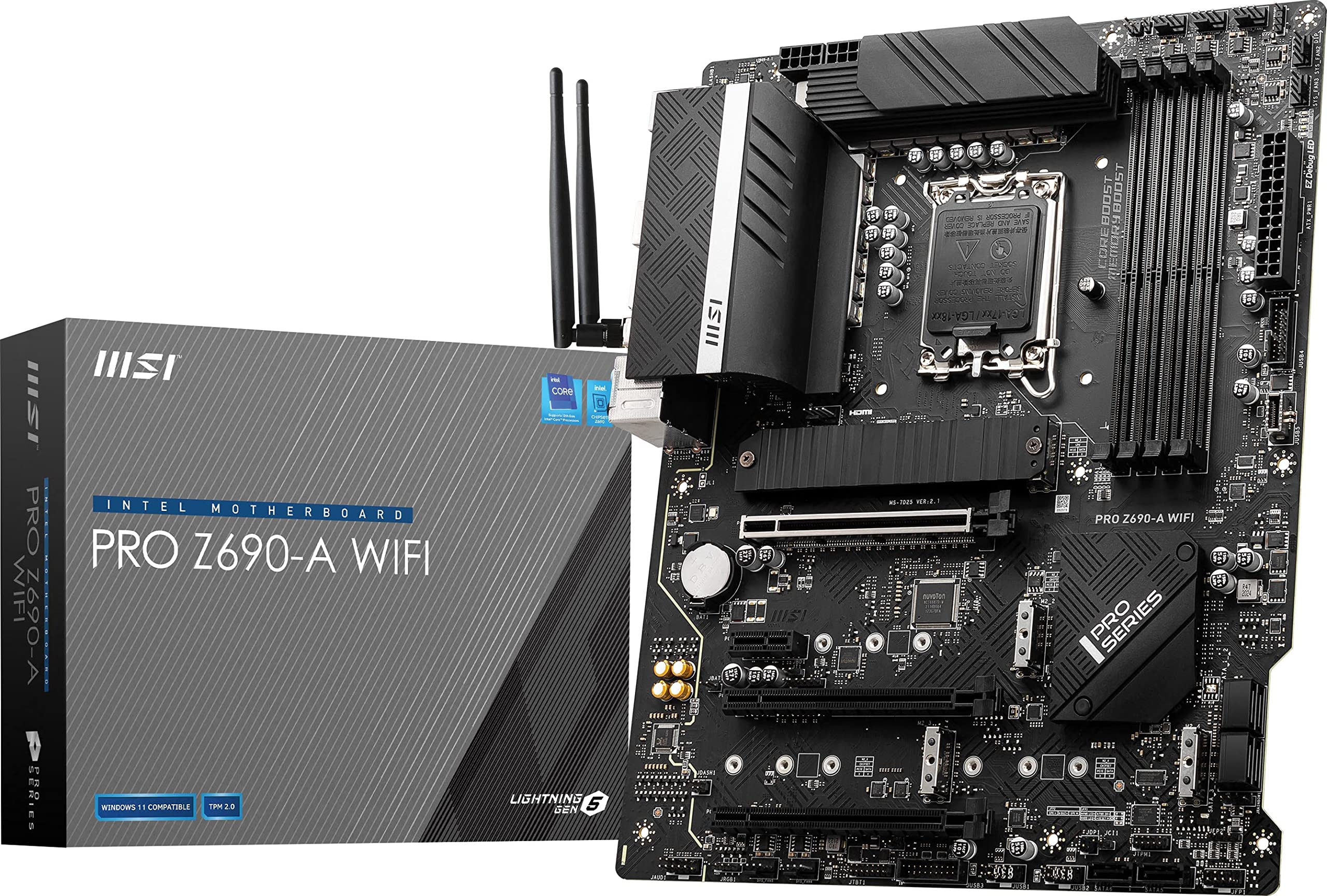
The motherboard (system board) is the central hardware component that physically and electrically connects the CPU, RAM, storage, expansion cards, and I/O interfaces. It determines what processors and memory types the system can use, what expansion buses are available, and what integrated peripherals are present.
On desktops and servers, components like CPUs and RAM are installed into sockets on the motherboard — replaceable and upgradeable. On laptops and small-form-factor systems, many components are soldered directly to the board, which increases density and reduces power consumption at the cost of repairability and upgradability.
CPU: Inspection and Architecture Link to heading
The CPU (Central Processing Unit) executes the instructions that make up every process on the system. On Linux, lscpu provides a comprehensive view of CPU architecture, topology, and capabilities.
arch                    # brief: x86_64, aarch64, etc.
uname -m                # equivalent to arch
lscpu                   # full CPU architecture details
lsb_release -a          # distribution-specific information
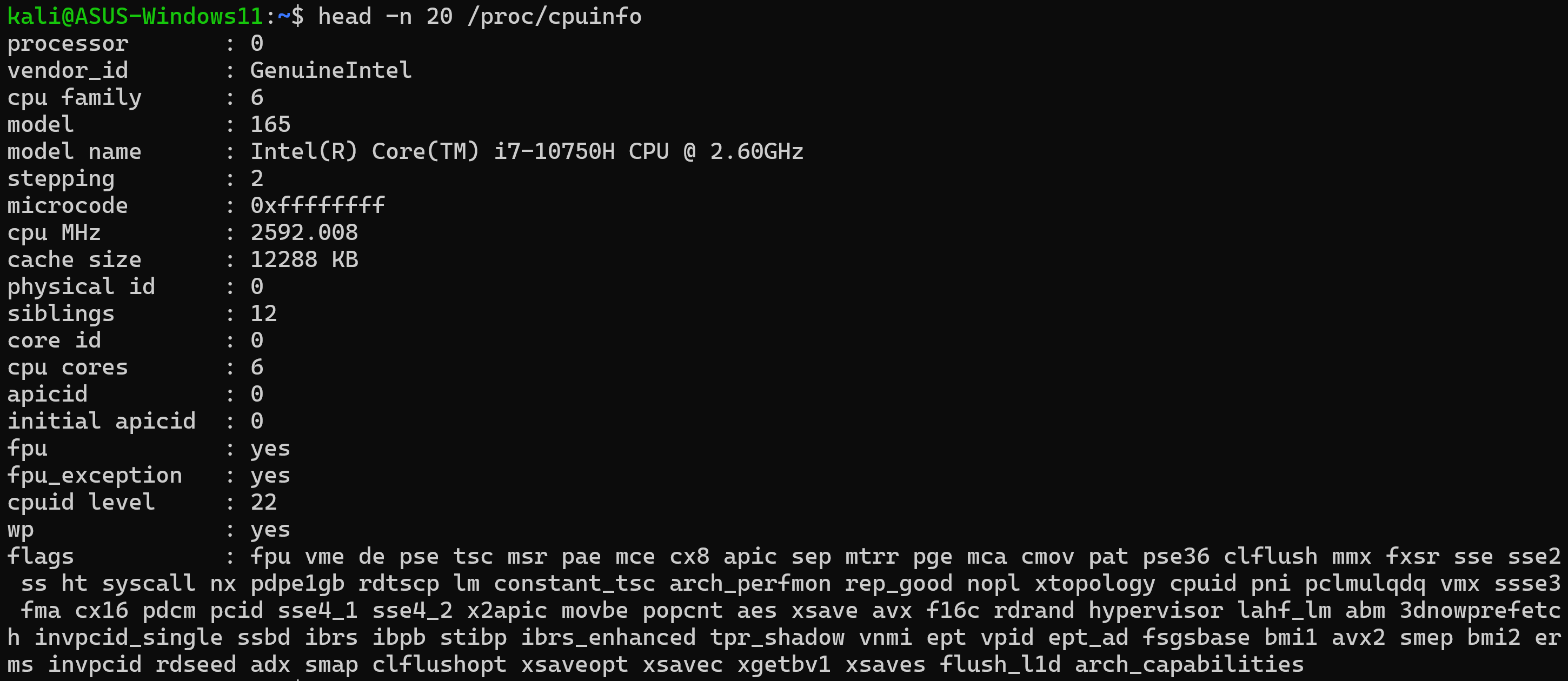
head -n 20 /proc/cpuinfo    # raw kernel CPU info including feature flags

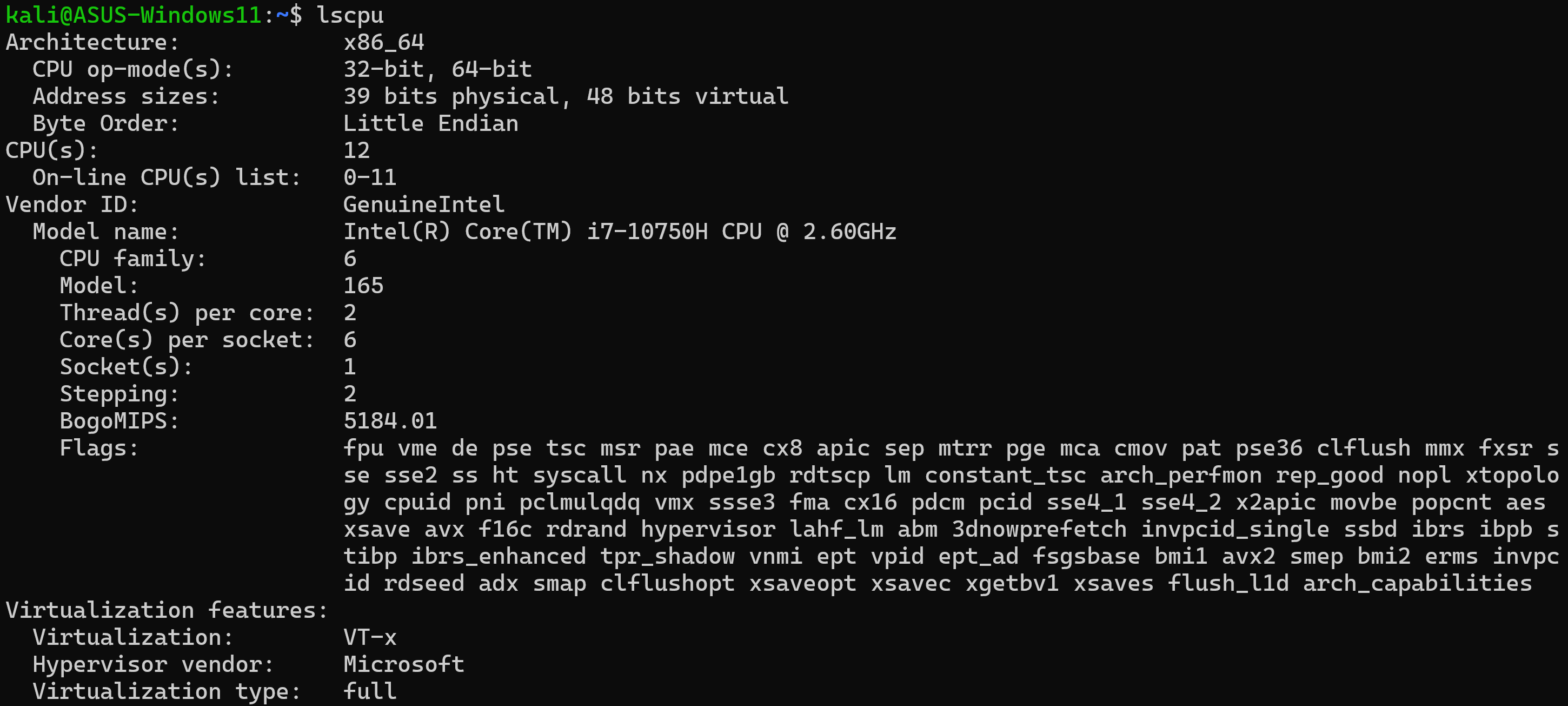
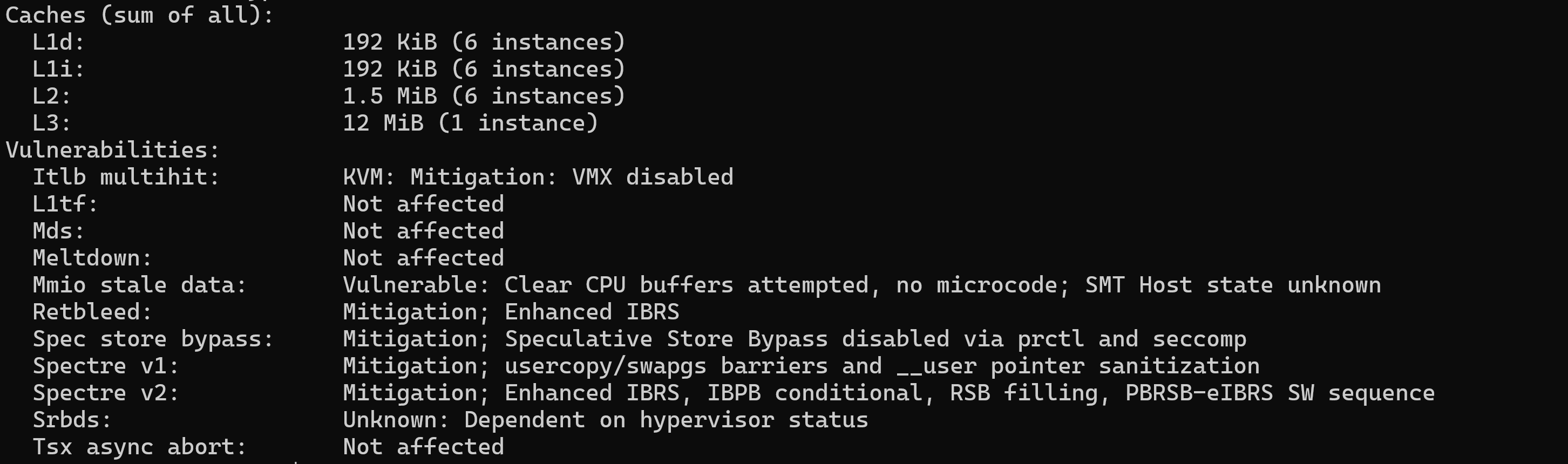
Key fields in lscpu output:
| Field | Meaning |
|---|---|
| Architecture | x86_64 = 64-bit mode active |
| CPU op-mode(s) | 32-bit, 64-bit = physically a 64-bit CPU capable of 32-bit mode |
| CPU(s) | Total logical CPUs (sockets × cores × threads) |
| Thread(s) per core | 2 = HyperThreading/SMT enabled |
| Core(s) per socket | Physical cores per CPU socket |
| Socket(s) | Number of physical CPU sockets |
| NUMA node(s) | Non-Uniform Memory Access regions (relevant for multi-socket servers) |
| CPU MHz / max MHz | Current and maximum clock frequencies |
| Virtualisation | VMX (Intel VT-x) or SVM (AMD-V) — required for hardware-assisted virtualisation |
The /proc/cpuinfo file shows the CPU flags that determine hardware capabilities — SSE4, AVX, AES-NI, and other extensions that applications (databases, cryptography libraries, video codecs) can use. This is particularly useful when diagnosing whether a host can run specific software or virtualisation technologies.
grep -m1 "model name" /proc/cpuinfo    # CPU model name
grep -c processor /proc/cpuinfo        # total logical CPU count
grep flags /proc/cpuinfo | head -1     # CPU feature flags
RAM and Virtual Memory Link to heading
The free command shows memory utilisation:
free -h         # human-readable (K, M, G)
free -m         # megabytes
free -g         # gigabytes
free -s 5       # refresh every 5 seconds

Output fields:
| Field | Meaning |
|---|---|
| total | Total physical RAM installed |
| used | RAM currently in use by processes |
| free | RAM not in use at all |
| shared | RAM used by tmpfs and shared memory |
| buff/cache | RAM used for disk buffers and filesystem cache (reclaimable by applications on demand) |
| available | RAM available for new processes without swapping (used + buff/cache - reclaimable overhead) |
available column is the operationally relevant metric — not free. Linux aggressively uses spare RAM for disk cache to improve I/O performance. This memory is not “wasted”; it is reclaimed immediately when processes need it. A system showing near-zero free but high buff/cache is performing normally. Concern is warranted when available is consistently low and swap usage is climbing.Swap space extends effective memory by using disk storage as overflow when RAM is exhausted. When RAM fills, the kernel moves least-recently-used pages to the swap partition or swapfile. Swap access is orders of magnitude slower than RAM, so sustained swap usage indicates the system is under-provisioned for its workload.
swapon --show               # show active swap devices and usage
cat /proc/meminfo           # detailed kernel memory breakdown
vmstat 1 5                  # memory, swap, and I/O statistics (5 samples, 1s interval)
Buses: PCI and USB Link to heading
Buses are high-speed communication pathways connecting the CPU to peripheral devices.
PCI/PCIe (Peripheral Component Interconnect Express) is the internal bus for expansion cards: network adapters, storage controllers, GPUs, and sound cards. PCI devices are typically cold-plug — the system must be powered off to add or remove them.
USB (Universal Serial Bus) is the external bus for peripherals: keyboards, mice, storage devices, webcams. USB devices are hot-plug — they can be connected and disconnected while the system runs.
# List all PCI devices
lspci
lspci -v                    # verbose (driver, resources)
lspci -k                    # show kernel driver and modules per device
lspci -nn                   # include vendor/device IDs (useful for driver lookup)

# List all USB devices
lsusb
lsusb -v                    # verbose
lsusb -t                    # show USB tree topology
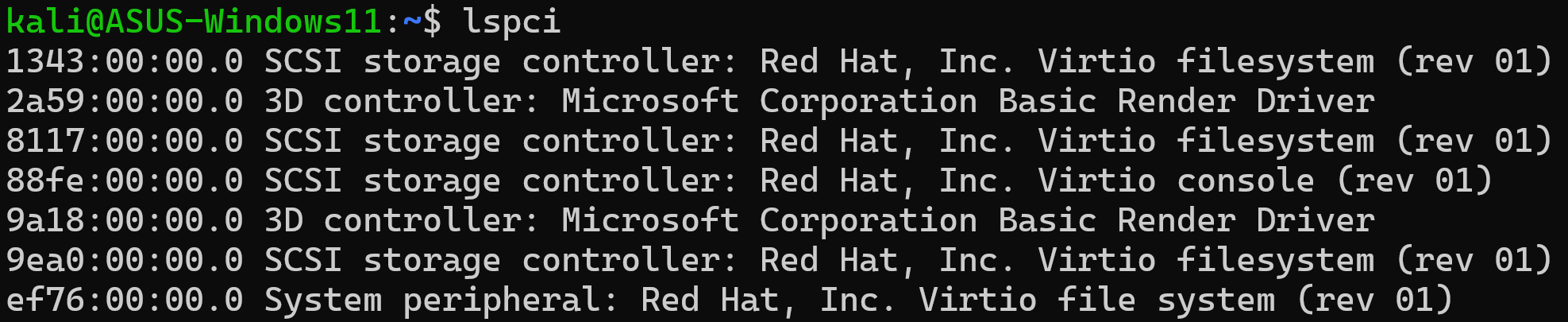
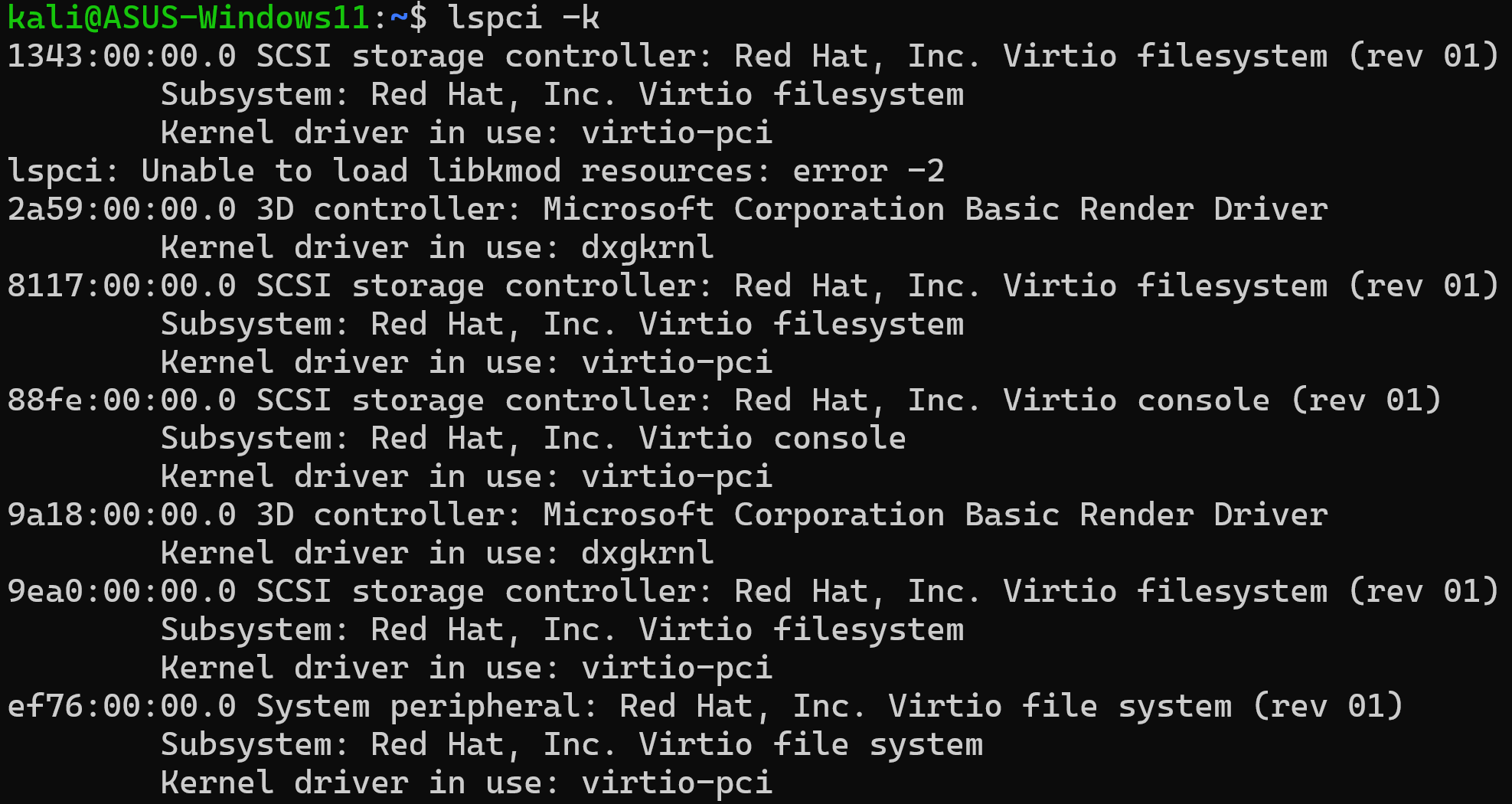

lspci -k is particularly useful for identifying whether a device has a kernel driver loaded — an absent driver explains why a NIC, GPU, or storage controller is not functioning.
umount or the system’s eject mechanism before physically disconnecting the device. Linux buffers writes asynchronously — physically removing a USB drive while writes are in flight can corrupt the filesystem.Storage Devices Link to heading
Hard Drives and Device Naming Link to heading
Storage devices are represented as block device files in /dev. The naming convention:
| Prefix | Type | Example |
|---|---|---|
hd |
IDE/ATA drives (legacy) | /dev/hda, /dev/hdb |
sd |
SATA, USB, SCSI drives | /dev/sda, /dev/sdb |
nvme |
NVMe SSDs | /dev/nvme0n1, /dev/nvme0n1p1 |
vd |
Virtual drives (KVM/libvirt) | /dev/vda, /dev/vdb |
Device order is assigned by the kernel at boot time based on detection order. Partitions add a numeric suffix:
/dev/sda— first SATA/SCSI disk/dev/sda1— first partition on that disk/dev/sda2— second partition
ls /dev/sd*         # list SATA/SCSI disk devices
ls /dev/nvme*       # list NVMe devices
lsblk               # block device tree (disks, partitions, LVM, mount points)
lsblk -f            # include filesystem types and UUIDs

Partitioning Tools Link to heading
Linux supports two partitioning table types:
MBR (Master Boot Record): Legacy format, supports up to 4 primary partitions (or 3 primary + 1 extended with logical partitions inside), maximum 2 TB per partition. Tools: fdisk, cfdisk, sfdisk.
GPT (GUID Partition Table): Modern format, supports up to 128 partitions, handles disks larger than 2 TB, required for UEFI boot. Tools: gdisk, cgdisk, sgdisk.
parted and gparted support both MBR and GPT.
# Non-interactive: list partition tables for all disks
sudo fdisk -l

# Non-interactive: list specific disk
sudo fdisk -l /dev/sda

# Interactive partition editor (MBR)
sudo fdisk /dev/sdb

# Interactive partition editor (GPT)
sudo gdisk /dev/sdb
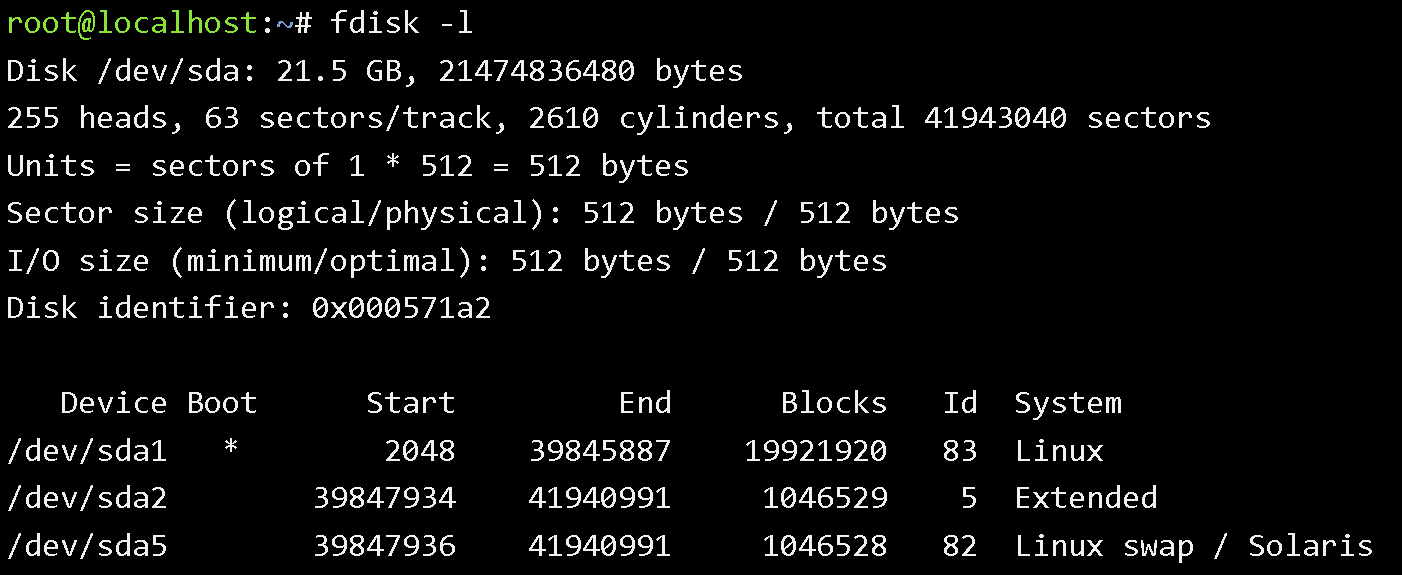
fdisk in interactive mode can modify or destroy partition tables. Always use fdisk -l (non-interactive list mode) for inspection. Make a backup of the partition table before making changes on production systems: sfdisk -d /dev/sda > sda_partition_backup.txt.Solid State Drives Link to heading
SSDs use flash memory rather than spinning magnetic platters. The practical implications:
Advantages: Significantly faster random I/O (especially reads), lower latency, lower power consumption, no vibration or mechanical failure mode.
Disadvantages: Higher cost per GB, limited write endurance (each cell degrades over write cycles), may be soldered to the motherboard (no replacement without board swap).
NVMe SSDs connected directly to PCIe achieve dramatically higher throughput than SATA SSDs — relevant when selecting storage for I/O-intensive workloads (databases, log aggregation).
# SSD health and wear information (requires nvme-cli)
sudo nvme smart-log /dev/nvme0n1

# Drive info (SATA SSDs)
sudo hdparm -I /dev/sda
Optical Drives and Removable Media Link to heading
Optical drives (DVD, Blu-ray) appear as block devices under /dev/sr0, /dev/sr1, etc., or as /dev/cdrom (often a symlink).
Mount behaviour:
- Older distributions: auto-mount to
/mnt - Modern distributions: auto-mount to
/media/username/label(viaudisks2)
# Mount manually
sudo mount /dev/sr0 /mnt/cdrom

# Unmount (required before physical removal)
sudo umount /mnt/cdrom
# or
eject /dev/sr0
Kernel Modules and Device Drivers Link to heading
Hardware devices require kernel drivers to function. On Linux, drivers can be:
- Compiled into the kernel (always available)
- Loaded as kernel modules (
.kofiles, loaded on demand) - Provided by user-space software (USB scanners, printers via CUPS)
# List all currently loaded kernel modules
lsmod
# Module name | Memory used | Reference count | Used by

# Get information about a specific module
modinfo e1000e          # Intel NIC driver info, parameters, dependencies

# Load a module manually
sudo modprobe e1000e

# Unload a module
sudo modprobe -r e1000e

# Check if a device has a driver loaded
lspci -k | grep -A3 "Network"
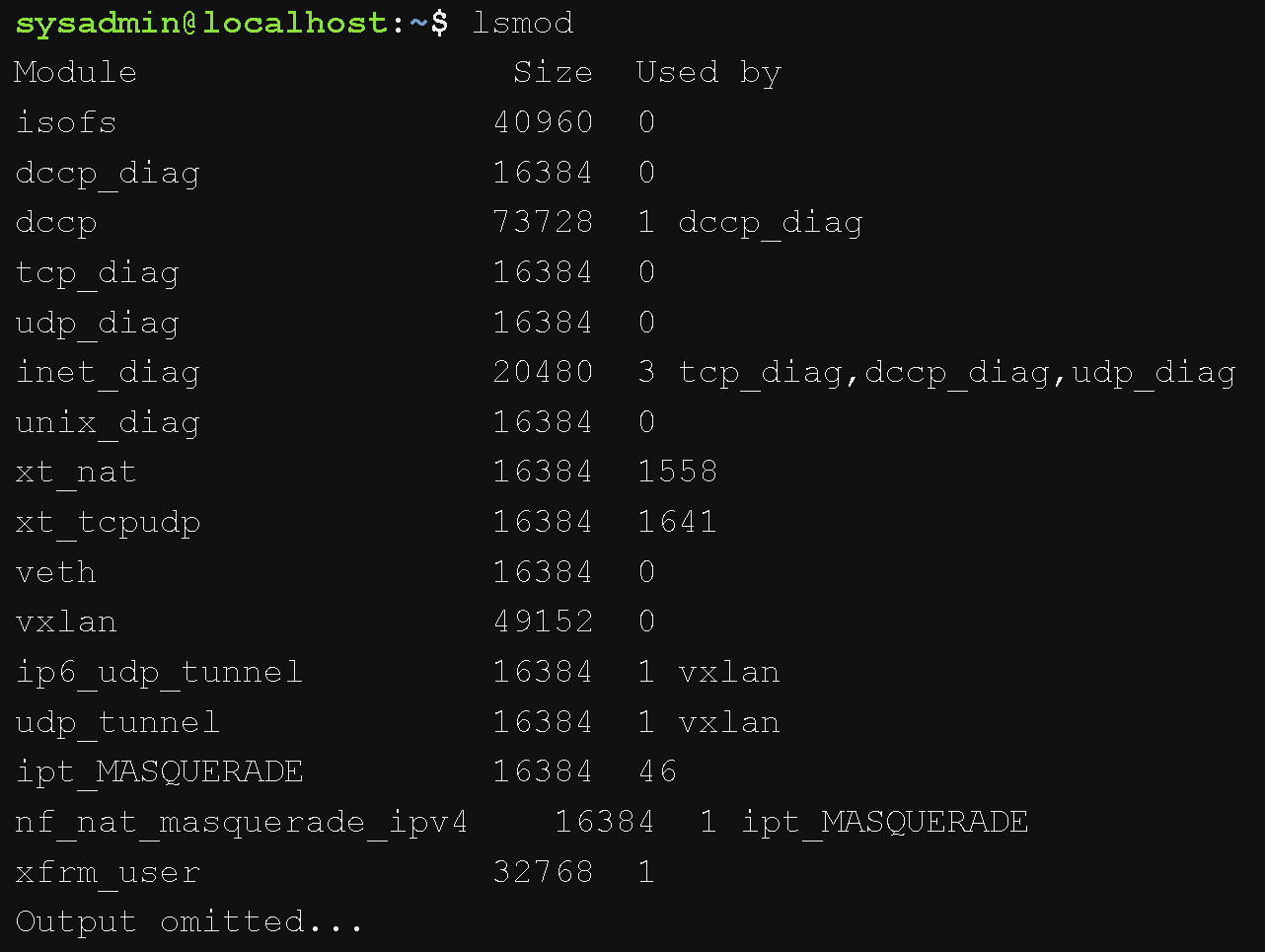
When a hardware device is not working, lspci -k or lsusb -v will show whether the kernel has a driver bound to the device. No driver listed means either the driver is not installed, the module is not loaded, or the hardware is unsupported by the current kernel.
Video Display Devices Link to heading
Video output is handled by a video device (GPU — graphics processing unit) connected to the motherboard (integrated) or via PCIe (discrete GPU). Common connection interfaces:
| Interface | Description |
|---|---|
| VGA | Analog, 15-pin D-sub; legacy, max ~1080p |
| DVI | Digital video, 29-pin; common on older monitors and GPUs |
| HDMI | Digital audio+video, 19 or 29 pins; widely used, supports 4K |
| DisplayPort (DP) | Digital, 20-pin; high bandwidth, supports daisy-chaining and high refresh rates |
| Mini DisplayPort | Compact DP variant; common on MacBooks and thin laptops |
The GPU driver manages resolution negotiation with the connected monitor. Modern systems handle this automatically via EDID (Extended Display Identification Data) — the monitor reports its supported resolutions to the GPU driver, which selects the highest common resolution.
# Show connected displays and resolution information
xrandr                      # X11 systems
wlr-randr                   # Wayland (wlroots-based compositors)

# GPU information
lspci | grep -i vga
lspci | grep -i "3d\|display\|vga"
Power Supplies Link to heading
Power supplies convert incoming AC power (120V or 240V) to the DC voltages that computer components require (3.3V, 5V, 12V). They are largely passive from a Linux perspective — the OS interacts with power management through ACPI (Advanced Configuration and Power Interface), not the PSU directly.
Key operational considerations:
- Desktop/server systems are vulnerable to power fluctuations; an Uninterruptible Power Supply (UPS) protects against voltage spikes and provides ride-through time during outages
- Laptop systems have built-in batteries that absorb fluctuations; power quality is less of an immediate concern
- Power supply failure or insufficient wattage for the installed hardware can cause random reboots, kernel panics, and hardware instability that mimics software bugs
# Check AC adapter and battery status (laptops)
upower -i /org/freedesktop/UPower/devices/battery_BAT0
cat /sys/class/power_supply/AC/online      # 1=on AC, 0=on battery

# System power draw (if supported)
sudo turbostat --Summary --quiet           # Intel CPU power stats