
Table of Contents Link to heading
User Private Group (UPG) Link to heading
Most modern Linux distributions create a User Private Group (UPG) automatically when a new user account is created. The group has the same name and GID as the username and UID, and the new user is the sole member.
The UPG model ensures that new files created by the user are owned by a group that no other user shares — preventing accidental information leakage through group-readable files. Users can explicitly grant group access to specific files when collaboration is needed.
On distributions that do not implement UPG (some older systems), new users are assigned to a shared default group (typically users).
Group Management Link to heading
Groups provide a mechanism for users to share file access. An administrator creates groups aligned with organisational roles (developers, webteam, dba) and adds users to those groups. File and directory permissions are then set for the group rather than for individual users — which scales far better than per-user ACLs.
For commands to view existing group information, see Group Accounts.
All group management commands require administrative privileges.
Creating Groups: groupadd Link to heading
# Create a new group
sudo groupadd developers

# Create with a specific GID
sudo groupadd --gid 2001 developers

# Create a system group (GID < 1000, no home directory convention)
sudo groupadd --system nginx
GID considerations:
- GIDs 0–999 are reserved for system groups on most distributions
- To create a system group (GID in the reserved range), use
--systemor--gidwith a value below 1000 combined with--system - In environments with multiple systems, coordinate GIDs across hosts to ensure consistent group identity when sharing files via NFS or other network storage
- Avoid creating GIDs that overlap with the UID range you use for regular users — it prevents confusion when inspecting file ownership
Group naming conventions:
- First character: lowercase letter (
a-z) or underscore_ - Remaining characters: lowercase alphanumeric, hyphen
-, or underscore_ - Last character: not a hyphen
- Maximum length: 32 characters on most distributions (16 is a safer maximum for compatibility)
Deleting Groups: groupdel Link to heading
groupdel removes a group from the system. Only supplementary groups can be deleted — a group that is the primary group of any user account cannot be deleted until that user’s primary group is changed.
sudo groupdel developers
When a group is deleted, files that were group-owned by it become orphaned — they retain the numeric GID but it no longer maps to a name. Find orphaned files after group deletion:
sudo find / -nogroup 2>/dev/null
sudo find / -gid 2001 2>/dev/null    # by numeric GID if known
Modifying Groups: groupmod Link to heading
# Rename a group
sudo groupmod --new-name webteam developers

# Change the GID
sudo groupmod --gid 2002 developers
Changing a group’s GID with groupmod --gid orphans all files previously owned by the old GID. Those files retain the old numeric GID which no longer maps to a group name. After changing a GID, find and update affected files:
sudo find / -gid OLD_GID -exec chgrp NEW_GID {} \;
Renaming a group (changing the name, not the GID) does not affect file ownership — the GID is unchanged, so files retain correct group ownership immediately.
User Account Configuration Files Link to heading
Before creating users, understand the default configuration that shapes newly created accounts.
/etc/default/useradd Link to heading
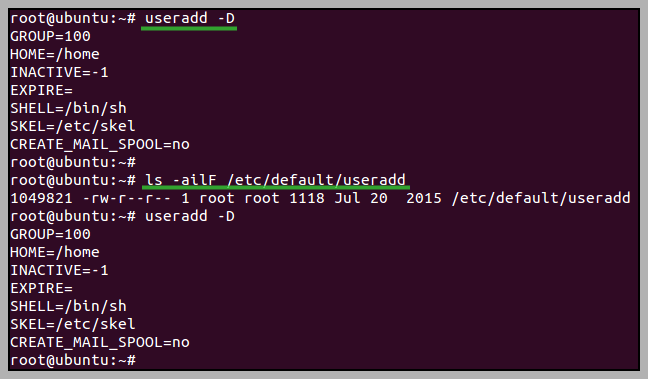
/etc/default/useradd stores the defaults used by useradd when options are not explicitly specified. View or change defaults with:
useradd -D              # display current defaults
sudo useradd -D --shell /bin/zsh    # change default shell for new accounts
| Field | Description |
|---|---|
| GROUP | Default primary GID (used when UPG is not enabled) |
| HOME | Base directory for user home directories (typically /home) |
| INACTIVE | Days after password expiry before account is locked (-1 = disabled) |
| EXPIRE | Default account expiration date (empty = never) |
| SHELL | Default login shell |
| SKEL | Skeleton directory copied into new home directories (/etc/skel) |
| CREATE_MAIL_SPOOL | Whether to create a mail spool file for the user |
/etc/login.defs Link to heading
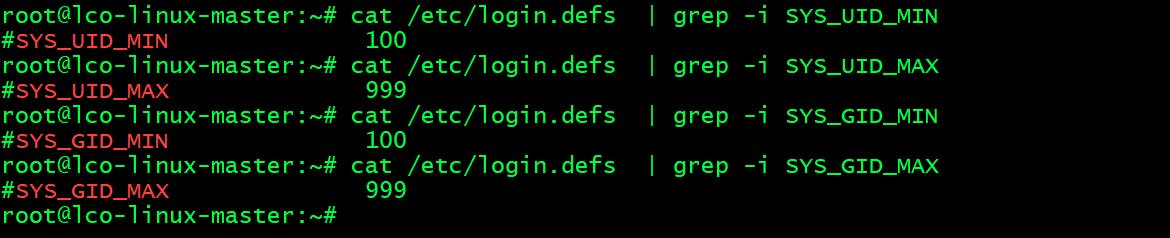
/etc/login.defs defines system-wide defaults for user and group creation — UID/GID ranges, password policy, and home directory behaviour. Edit this file directly to change the values:
# View active settings (excludes comments and blank lines)
grep -Ev '^#|^$' /etc/login.defs
Key settings:
| Setting | Description |
|---|---|
UID_MIN / UID_MAX |
Range for regular user UIDs (typically 1000–60000) |
GID_MIN / GID_MAX |
Range for regular group GIDs |
PASS_MAX_DAYS |
Maximum days before password must be changed |
PASS_MIN_DAYS |
Minimum days between password changes |
PASS_MIN_LEN |
Minimum password length |
PASS_WARN_AGE |
Days before expiry that user receives a warning |
CREATE_HOME |
Whether to create home directories by default |
UMASK |
Default umask for new home directories |
USERGROUPS_ENAB |
Enable UPG (create a private group per user) |
ENCRYPT_METHOD |
Password hashing algorithm (SHA512 is current standard) |
User Management Link to heading
Creating Users: useradd and adduser Link to heading
Linux provides two tools for creating users with different levels of abstraction:
useradd — Low-Level (Universal) Link to heading
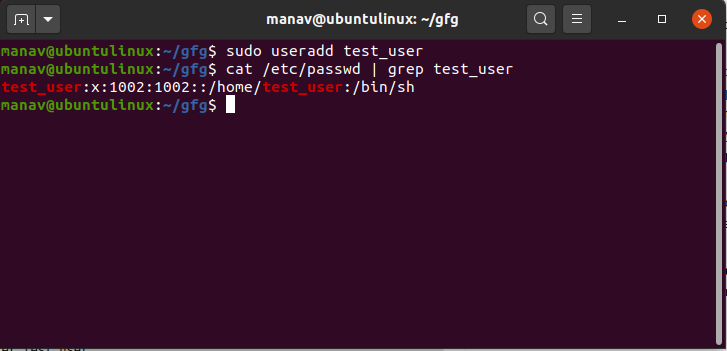
useradd is available on all Linux distributions and requires explicit options for a complete account setup. Without options, it creates a minimal account that may lack a home directory or usable password.
# Create with home directory (explicit — some distributions require this)
sudo useradd --create-home username

# Full account creation
sudo useradd \
  --uid 1500 \
  --gid developers \
  --groups sudo,docker \
  --shell /bin/bash \
  --create-home \
  --comment "Jane Smith" \
  username

# Create a system account (service account, no home, nologin shell)
sudo useradd --system --shell /sbin/nologin --comment "nginx web server" nginx

# Create with skeleton directory (files from /etc/skel copied to home)
sudo useradd --skel /etc/skel --create-home username
adduser — High-Level (Debian/Ubuntu) Link to heading
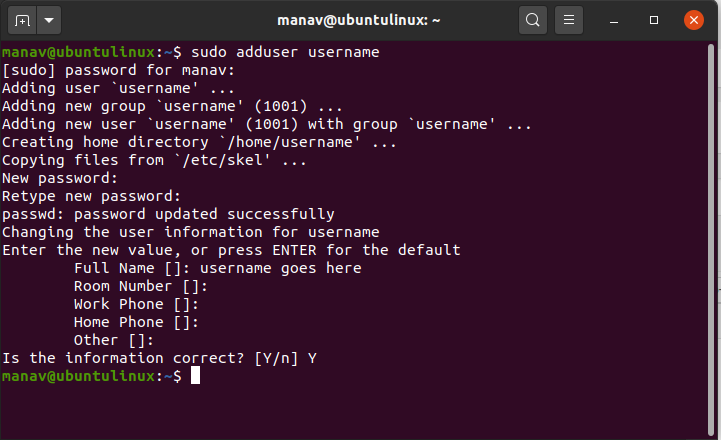
adduser is an interactive Perl script on Debian-based distributions. It walks through account creation with sensible prompts and defaults — home directory, password, and GECOS information are all handled interactively:
sudo adduser username                   # interactive setup
sudo adduser --no-create-home username  # no home directory
sudo adduser --home /opt/app username   # custom home path
sudo adduser --shell /bin/zsh username  # custom shell
sudo adduser --ingroup developers username  # assign primary group
adduser is not available on RHEL/CentOS/Rocky Linux — use useradd on those systems. When writing scripts that must run on multiple distributions, use useradd with explicit options rather than adduser.UID Considerations Link to heading
| UID Range | Purpose |
|---|---|
| 0 | Root — any account with UID 0 has full root privileges, regardless of name |
| 1–499 (or 1–999) | System accounts — reserved for service accounts |
| 65534 | nfsnobody — special account for unmapped NFS users |
| 1000+ | Regular user accounts (conventional starting point) |
Operational guidelines:
- In networked environments sharing home directories via NFS, coordinate UID assignments across all hosts — mismatched UIDs cause permission problems where a user on host A owns files that appear orphaned on host B
- For maximum compatibility with legacy systems, keep UIDs below 60000
- Starting regular users at 1000 leaves a large range for system accounts (1–999) and prevents conflicts with future distribution packages
Username Conventions Link to heading
- First character: lowercase letter (
a-z) or underscore_ - Remaining characters: lowercase alphanumeric, hyphen
-, or underscore_ - Last character: not a hyphen
- Maximum length: 32 characters (16 characters for broadest compatibility)
- Use
--badnamewithadduserto allow names that violate these conventions (not recommended for production)
Password Management Link to heading
A newly created account has no password set (or a locked password, depending on distribution). The account cannot be used until a password is assigned.
# Set or change a user's password (prompts for new password)
sudo passwd username

# Change your own password
passwd

# Lock an account (prepend ! to password hash in /etc/shadow)
sudo passwd --lock username

# Unlock an account
sudo passwd --unlock username

# Expire a password immediately (force change at next login)
sudo passwd --expire username

# Set an empty password (passwordless login — not recommended in production)
sudo passwd --delete username

# Check account status
sudo passwd -S username
# username P 01/15/2024 0 99999 7 -1 (P=password set, L=locked, NP=no password)
Password policy factors:
| Factor | Guidance |
|---|---|
| Length | Minimum 12 characters; longer passphrases are better than complex short passwords |
| Composition | Mix of character types; avoid dictionary words and keyboard patterns |
| Rotation | High-privilege accounts: every 30–60 days; standard users: every 90 days |
| History | Prevent reuse of recent passwords (configured via PAM pam_pwhistory) |
If an account is compromised and the password has a defined maximum age, the intruder loses access when the password expires — limiting the window of unauthorised access.
Password Aging: chage Link to heading
chage manages the password aging policy stored in /etc/shadow on a per-account basis:
# List current password aging information
sudo chage --list username
chage -l username               # shorthand

# Force password change at next login (set last change date to epoch)
sudo chage --lastday 0 username

# Set maximum password age to 90 days
sudo chage --maxdays 90 username

# Disable password expiration
sudo chage --maxdays -1 username

# Set account expiration date
sudo chage --expiredate 2025-12-31 username

# Set warning period (days before expiry that user is warned)
sudo chage --warndays 14 username

# Set inactive period (days after expiry before account locks)
sudo chage --inactive 30 username
Deleting Users: userdel Link to heading
# Remove the account only (home directory and mail spool preserved)
sudo userdel username

# Remove the account, home directory, and mail spool
sudo userdel --remove username

# Remove in an alternate root directory (for chroot environments)
sudo userdel --root /chroot username
After deletion, files owned by the deleted UID become orphaned. Find and reassign or remove them:
sudo find / -nouser 2>/dev/null                     # orphaned files
sudo find / -nouser 2>/dev/null -exec ls -la {} \;  # with details
Modifying Users: usermod Link to heading
usermod modifies an existing account’s attributes. Most changes take effect at the next login.
# Rename a user account
sudo usermod --login new_username old_username

# Change a user's UID
sudo usermod --uid 1600 username

# Change the login shell
sudo usermod --shell /bin/zsh username

# Add to supplementary groups (without removing existing group memberships)
sudo usermod --append --groups docker,developers username

# Replace supplementary group list entirely (removes all current memberships)
sudo usermod --groups docker,developers username

# Move home directory to a new path
sudo usermod --move-home --home /opt/users/username username

# Set account expiration date
sudo usermod --expiredate 2025-12-31 username

# Remove account expiration
sudo usermod --expiredate "" username

# Lock or unlock account
sudo usermod --lock username
sudo usermod --unlock username
usermod --groups (without --append) replaces all supplementary group memberships with the new list. If you intend to add a user to a group without removing them from others, always use --append --groups. Accidentally removing a user from the sudo group locks them out of administrative access.