Table of Contents Link to heading
- User Accounts and Access Control
- Why Direct Root Login Is Risky
- Switching Users: su
- Privileged Command Execution: sudo
- Account Data Files
- Account Types
- Viewing User Identity: id
- Monitoring Active Sessions
- Viewing Login History: last
User Accounts and Access Control Link to heading
Linux is a multi-user operating system built on a principle of least privilege: every user has access only to what they explicitly need. User accounts enforce this through two mechanisms:
- Authentication — verifying who the user is (via password, SSH key, or other credential)
- Authorisation — determining what that user is allowed to do (via file permissions, group membership, and sudo rules)
Every user account has a unique User ID (UID). Every group has a unique Group ID (GID). The kernel tracks ownership and access rights by these numeric IDs; usernames and group names are human-readable aliases stored in database files under /etc/.
Knowing how these files are structured is operationally important — they determine who can log in, what groups they belong to, and what system access those groups permit. They are also the first place to inspect when troubleshooting access problems.
Why Direct Root Login Is Risky Link to heading
The root account (UID 0) has unrestricted access to every file and system call on the system. Logging in directly as root introduces several compounding risks:
- Session-wide blast radius — every background process, browser session, or script running in a root shell has full system access; a single compromised subprocess can do anything
- Error amplification — a mistaken
rm -rforchmod -R 777as root has immediate, system-wide consequences with no guardrails - No accountability — root actions are not attributed to a specific operator; in shared environments, it is impossible to audit who did what
- Forgetting to switch back — operators logged in as root for an administrative task sometimes continue non-administrative work in the same session
The recommended approach:
- On distributions that disable the root account (Ubuntu, modern Debian): use
sudofor individual privileged commands - On distributions with a root account enabled: use
su -to switch when needed for a specific task, then return to a regular account immediately after
Switching Users: su Link to heading
su (substitute user) opens a new shell as another user. Without a username argument, it defaults to root.
# Switch to root (requires the root password)
su

# Switch to root with a full login shell (loads root's environment)
su -

# Switch to a specific user
su username

# Switch with full login shell (loads that user's environment)
su - username

# Execute a single command as another user without opening an interactive shell
su - username --command "id"
su - root --command "systemctl restart nginx"
The - (or --login) option is important: without it, su opens a shell in the current environment. With it, the new shell sources the target user’s login files (.profile, .bash_profile), sets the home directory correctly, and loads the full environment of that user — which is typically what you want.
After finishing privileged work, exit returns to the original user’s shell.
Privileged Command Execution: sudo Link to heading
sudo allows an authorised user to execute a specific command as root (or another user) without switching accounts. It is the preferred mechanism for privilege escalation on well-administered systems.
# Run a command as root
sudo systemctl restart nginx
sudo less /var/log/auth.log

# Edit a file as root with the user's default editor
sudo --edit /etc/fstab          # safer than sudo vi (avoids root shell)
sudo -e /etc/fstab              # shorthand

# Run as a specific user and group
sudo --user=www-data --group=webteam id

# Repeat last command with sudo (bash/zsh only)
sudo !!

# Open a root login shell (use sparingly)
sudo --login
sudo -i                         # shorthand

# Open a root shell in the current environment (not a login shell)
sudo --shell
sudo -s                         # shorthand

# Run as a specific user
sudo --login --user=postgres psql

# List what commands the current user is allowed to run
sudo --list
sudo -l                         # shorthand
Key differences from su:
sudoprompts for the current user’s password, not root’s — an important security distinction in environments with many administrators- Each
sudoinvocation is logged to/var/log/auth.log(Debian/Ubuntu) or/var/log/secure(RHEL) with the username, command, and timestamp — creating an audit trail - Access is controlled by
/etc/sudoers(edited safely withvisudo) — fine-grained rules can permit specific commands to specific users without granting full root access
Account Data Files Link to heading
/etc/passwd Link to heading
/etc/passwd defines basic account information for every user. It is world-readable — any user on the system can read it.
username:x:UID:GID:comment:home_directory:shell
Example:
root:x:0:0:root:/root:/bin/bash
www-data:x:33:33:www-data:/var/www:/usr/sbin/nologin
sysadmin:x:1001:1001:Sysadmin User:/home/sysadmin:/bin/bash
Fields:
- username: Login name
- x: Password placeholder — actual password hash is in
/etc/shadow - UID: User ID number
- GID: Primary group ID
- comment: Full name or description (GECOS field)
- home_directory: User’s home directory path
- shell: Login shell (
/bin/bash,/usr/sbin/nologinfor service accounts)
# Look up a specific user's entry
grep sysadmin /etc/passwd
getent passwd sysadmin

# Count total user accounts
wc -l /etc/passwd
/etc/shadow Link to heading
/etc/shadow stores the actual password hashes and password ageing policy. It is readable only by root — this separation prevents regular users from obtaining password hashes for offline cracking.
| Field | Description |
|---|---|
| Username | Matches the username in /etc/passwd |
| Password | Hashed password (format: $algorithm$salt$hash). * or ! means the account is locked |
| Last Change | Days since Jan 1, 1970 that password was last changed |
| Min | Minimum days between password changes (0 = can change anytime) |
| Max | Days until password must be changed (99999 = never expires) |
| Warn | Days before expiry that the user is warned |
| Inactive | Grace days after expiry before account is disabled |
| Expire | Days since Jan 1, 1970 that account expires (empty = never) |
| Reserved | Unused, reserved for future use |
# View shadow file (requires root)
sudo grep sysadmin /etc/shadow
sudo getent shadow sysadmin
Password hash format: $6$salt$hash — the $6$ prefix indicates SHA-512, which is the current standard. $1$ is MD5 (legacy, weak), $5$ is SHA-256.
/etc/group Link to heading
/etc/group defines group accounts and their memberships. Each line is colon-delimited:
group_name:password_placeholder:GID:member_list
Example:
sudo:x:27:sysadmin,henry
docker:x:998:sysadmin
developers:x:1002:alice,bob,charlie
| Field | Description |
|---|---|
| Group Name | Human-readable group name |
| Password Placeholder | x — group passwords (rare) are stored in /etc/gshadow |
| GID | Group ID number |
| User List | Comma-separated list of users for whom this is a supplementary group |
Note: A user’s primary group is defined in /etc/passwd (GID field), not in /etc/group. The /etc/group entries show supplementary (secondary) group memberships.
grep docker /etc/group          # who is in the docker group
getent group sudo               # sudo group members
groups username                 # all groups for a user
Querying Account Data with getent Link to heading
getent retrieves entries from Name Service Switch (NSS) databases — including local files (/etc/passwd, /etc/shadow, /etc/group) and network directory services (LDAP, NIS). It is the correct tool to use in environments where user accounts may be managed centrally rather than in local files.
getent passwd sysadmin          # user account info
getent shadow sysadmin          # password aging info (requires root)
getent group docker             # group membership
getent group                    # all groups
getent passwd 1001              # look up user by UID
getent hosts server01           # DNS/hosts lookup
getent services ssh             # service port number

Account Types Link to heading
| Type | UID Range | Characteristics |
|---|---|---|
| Root | 0 | Unrestricted system access; UID 0 grants superuser regardless of username |
| System accounts | 1–499 (or 1–999) | Created for services (nginx, postgres, www-data); no home directory; /sbin/nologin or /bin/false shell; * in shadow password field |
| Regular user accounts | ≥ 500 (or ≥ 1000) | Human users; have home directories and real shells |
System accounts exist so that services run with a dedicated, minimal-privilege identity rather than as root. If a service is compromised, the attacker gains only the permissions of that service account — not root.
# List system accounts (no login shell)
grep "nologin\|false" /etc/passwd

# List human user accounts
awk -F: '$3 >= 1000 && $3 != 65534 {print $1}' /etc/passwd
Viewing User Identity: id Link to heading
id displays the current user’s UID, primary GID, and all supplementary group memberships:
id                          # current user: uid, gid, all groups
id username                 # another user's identity
id -u                       # UID only (numeric)
id -g                       # primary GID (numeric)
id -G                       # all GIDs (numeric, space-separated)
id -Gn                      # all group names
id -un                      # username only

id is useful for verifying that group membership changes have taken effect (requires logout/login or newgrp), confirming the effective user when running under sudo, and debugging permission denied errors.
Monitoring Active Sessions Link to heading
who and w Link to heading
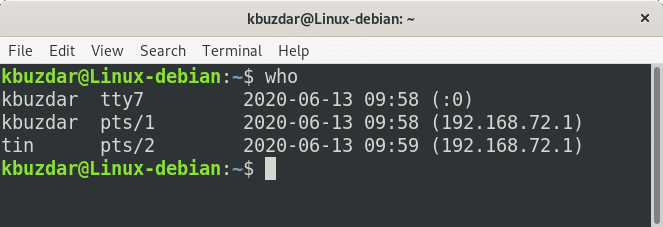
who shows which users are currently logged in:
who                         # list logged-in users
who am i                    # only your own session
who -a                      # all information
who -a -H                   # with column headers
Output fields:
- Username — logged-in account
- Terminal —
tty= local console;pts/N= pseudo-terminal (SSH, tmux, screen) - Login time — when the session started
- Location — hostname (remote login) or display number (GUI login); blank = local text console
w provides a superset of who — it also shows each user’s current process and idle time:
w                           # show logged-in users and their activity
w -h                        # omit header line
w username                  # show only a specific user
users Link to heading
users prints a space-separated list of currently logged-in usernames:
users                       # current logins from /var/run/utmp
users /var/log/wtmp         # historical logins from wtmp
Viewing Login History: last Link to heading
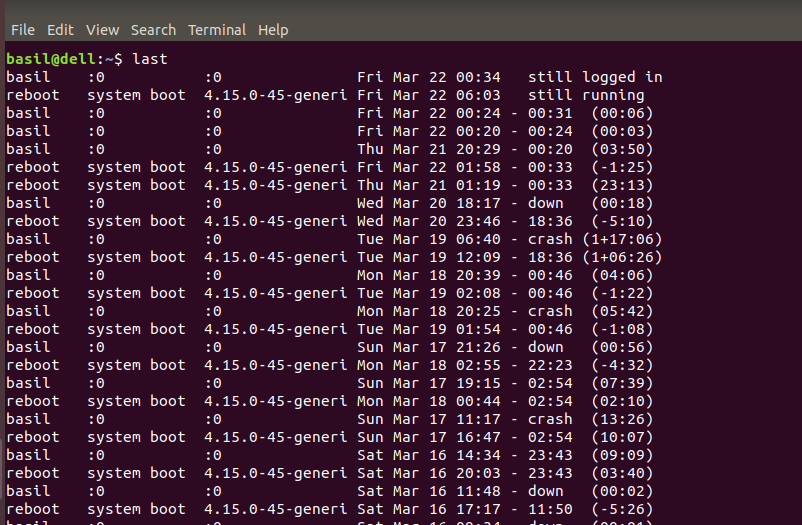
last reads /var/log/wtmp (a binary file) and displays historical login records — who logged in, from where, when, and for how long:
last                        # all login records
last -n 20                  # most recent 20 records
last -F -a                  # full timestamp, hostname at end
last username               # logins for a specific user
last username -i            # show IP address instead of hostname
last reboot                 # system reboot history
last shutdown               # system shutdown history
# Count logins per user in the last month
last | awk '{print $1}' | sort | uniq -c | sort -rn
For failed login attempts (requires root):
sudo lastb                  # reads /var/log/btmp — failed logins
sudo lastb -n 20            # most recent 20 failed attempts
lastb is particularly useful for identifying brute-force SSH attacks — a large number of failed root or common-username login attempts from a single IP is a clear signal.